
Troubleshoot Network Insight for F5® BIG-IP®
Check F5 monitoring requirements
Make sure the following conditions are met:
- Devices meet the Network Insight requirements.
- Correct credentials and port are used.
- F5 pollers are enabled on the device.
- To poll Health Monitor statistics, polling for F5 iControl is enabled.
Review F5 pollers
NPM uses four pollers to poll F5 data. Each poller collects different types of load balancing data.
F5 GTM and LTM status pollers
These pollers collect status data from devices. Status poller issues result in gray statuses:
-
When a node is down, GTM or services are Unreachable.
-
When the node is in any other status than Up or Down, GTM and services are Unknown.
Default status polling frequencies
-
2026.2 and later
- GTM status is polled every 4 minutes
- LTM status is polled every 5 minutes
-
2026.1 and earlier
- Every 2 minutes
F5 GTM and LTM statistics pollers
These pollers collect statistics data from the devices. If they are not operating successfully, resources show no data.
Default statistics polling frequencies
-
2026.2 and later
- GTM: Every 18 minutes
- LTM: Every 19 minutes
-
2026.1 and earlier
- Every 10 minutes
Address SNMP timeouts (2026.2 and later)
If SNMP polling times out, adjust SNMP settings for F5 pollers.
-
Go to Settings > All Settings, and click Polling Settings.
-
In the F5 section, adjust the following settings as needed.
- SNMP timeout
- SNMP retries
- SNMP max replies

This changes polling behavior for F5 SNMP pollers. Other SNMP pollers keep using default SNMP settings.
Find out how often status and statistics data are polled
These steps depend on your product version.
2026.2 and later
F5 pollers use dedicated polling intervals instead of node polling intervals. To find out whether the polling interval has been customized:
-
Go to Settings > All Settings, and click Polling Settings.
-
Review the F5 section to find out the frequency of polling for GTM and LTM status and statistics pollers.
2026.1 and earlier
Pollers use the default node polling intervals. To check or update the intervals:
- Go to the node details page, and click Edit Node in the Management resource.
- Review the Polling section to find out the frequency of polling node status and collecting the statistics.
Enable F5 pollers
F5 pollers specify the data collected from F5 devices. They are enabled by default when you add F5 devices.
When the F5 pollers are disabled, load balancing pages show obsolete data for the device. To display current data, enable the pollers.
- Log in to the SolarWinds Platform Web Console as an administrator.
- Click Settings > Manage Nodes.
- Find the node, select it, and click List Resources.
- Select the F5 BIG-IP poller, and click Submit.
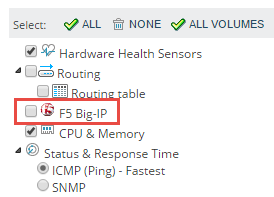
Load balancing resources now show current data.
Find details about F5 servers
F5 servers are the lowest level in the load balancing hierarchy. They are not displayed in the Balancing Environment widget. NPM monitors only their IP address and status.
To view server details:
- In the Load Balancing widget, click a pool member, and then click Display Details Page.
- On the F5 Pool Member Details page, click the F5 Server link in the Pool Member Details widget.
-
In the F5 Server Details widget, click Link Node.
-
Select an existing node, or add the node for monitoring in NPM.
To monitor more than the IP and status, link the F5 server to a monitored node.