Register multiple database instances
If you are monitoring a large number of database instances, use the DPA mass registration feature to quickly register multiple databases.
You can also use a wizard to register a single database instance.
Complete the following steps to download a predefined template and enter the required information for all database instances.
-
In the DPA menu bar, click Options.
- Under Monitor Setup > Database Instances, click Mass registration.
-
In the Choose a Database Type drop-down, select one of the following:
- If all database instances are the same type (for example, all Oracle or all SQL Server), select the database type.
- To register different types of database instances, select All database types.

-
Specify whether you want to edit and save the template on the DPA server or on your local computer.
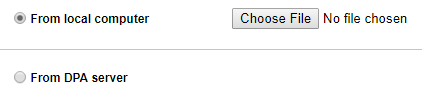
Based on your selections, instructions are displayed in the right pane.
-
Under How to, click the template link to download the registration file template for the selected database type.
Or, for Azure SQL database instances, click the link to instructions for auto-generating the registration file.
- Edit the file to add information about each database instance;
- Click the required information link in the How to section for information about what to enter in each column.
- Do not edit the header row.
-
Save the file in .csv format.
If you selected From DPA server, the file must be saved in the following location:
<DPA_home>/iwc/tomcat/ignite_config/registrationDepending on the database type, it must have one of the following file names:
massreg_mixed.csvmassreg_oracle.csvmassreg_sql_server.csvmassreg_azure_sql_database.csvmassreg_mysql.csv
- If you selected From local computer, click the Choose File button and select the file you saved.
- Click Load Registration File.
If you register a database instance within the 14-day trial period, DPA begins monitoring the instance immediately. After the trial period, you must activate a license to monitor the database instance.