
Set up the dashboard
Use the dashboard to create and view pie chart, bar graph, and text widgets that display your ticket statistical data. These widgets display trends in specific ticket categories (such as Ticket Status and Alert Condition) to help you locate issues that could affect your help desk and corporate operations.
You can configure three types of widgets: Ticket Chart, Ticket Activity, and What's New.

You can access the widgets from the Widget Drawer. Click Open Widget Drawer in the dashboard to display all available widgets.
See the following sections:
Ticket Chart widget
The ticket chart widget displays your ticket metrics in pie or bar charts. Each chart type identifies the total number of selections in a specific category.
Widgets can generate a warning message if the data cannot be processed within 15 seconds. See Ticket Chart performance limitations for details.
Create a ticket chart widget
-
Click Tickets > Dashboard.
-
In the dashboard, click Open Widget Drawer.
-
Select Ticket Chart Widget.
-
Click Add Widget. A chart widget with default content is added to the bottom of the dashboard.
-
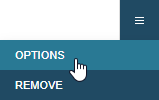
Click the drop-down menu icon and select Options.
The Options dialog includes a widget preview that displays your data in real time.
-
Select your chart options.
-
From the Query drop-down menu, specify which tickets you want the widget to display information about.
The All Tickets option is always available. Other queries are added when a tech saves a search and makes it public.
-
Select a Category to specify what the bars or pie slices represent. For example, if you select Request Type, each bar or pie slice represents a request type and the size is based on the number of tickets with that type.
-
Specify whether you want the chart to be a pie chart or a series of horizontal bars. The pie slices or bars are color-coded and sized based on the number of tickets they represent.
-
Select the number of top items you want the widget to display.
-
Select Show non-zero items only check box to display only categories with values greater than zero.
-
To see the code used to configure this chart, click JSON.
The code is displayed. You can copy this code and save it in an external file if desired. When you are finished, click JSON again to close the window.
-
-
Click Save. The widget is displayed in the dashboard with your selected category in the header.
When a data parameter changes, Web Help Desk implements a new database call and updates the chart to reflect the changes. If your ticket chart options include a complicated request, the chart may require additional time to process the request.

-
Drag the widget to the desired location and resize it as needed.
-
Click Close Widget Drawer.
View tickets by category and status
When you click a pie slice or horizontal bar, Web Help Desk displays all associated tickets. For example, when you click the Open pie slice, Web Help Desk displays all open tickets opened within the last 30 days with an Open status. The widget title reflects the selected category and category value.

To adjust the number of displayed tickets, click the Items per Page drop-down menu. If you need to search for a specific term in the page, press Control + F and enter your search term to highlight it in the page.
View a selected ticket
You can view an individual ticket by clicking the ticket number in the window.
Click  to return to the Dashboard. If you click the browser Back arrow, you return to the Dashboard main page, but you lose your search results.
Ticket chart performance limitations
The Category drop-down menu in the Ticket Chart Options window includes the following categories:
- Alert Level
- Alert Condition
- On-time Status
- First-Call Resolution
These categories may require an extended amount of time to query the Web Help Desk database, process the results, and display the results in the chart. If these categories cannot be processed within 15 seconds, the system times out and displays a warning message.
To minimize this issue, create and save a query in Tickets > Search > Advanced Search to reduce your search results. When you are finished, add the query to your widget options. This method reduces the amount of data processing required by the Web Help Desk database and prevents a warning.
For example, you can create a query in the Tickets > Search Tickets > Advanced Search tab that locates all tickets created within the last month. When you are finished, save the query with a corresponding name (such as Open within 30 days).

To share the query with other techs, select the Shared check box. When you configure your ticket chart options, the shared queries is displayed in the Query drop-down menu with an asterisk (*).
Ticket Activity widget
The ticket activity widget displays the recent changes applied to your tickets. These changes include:
- Tech notes
- Client notes
- Emails
- Assignments
- Escalations
- De-escalations
- Others
Web Help Desk refreshes this widget every 60 seconds.

Create a Ticket Activity widget
-
Click Tickets > Dashboard.
-
In the dashboard, click Open Widget Drawer.
-
Select Ticket Activity.
-
Click Add Widget. A Ticket Activity widget with default content is added to the bottom of the dashboard.
-
Click the drop-down menu icon and select Options.
The Options dialog includes a widget preview that displays your data in real time.
-
Select your chart options.
-
Under Activity Type, select the activities that you want the widget to display.
-
From the Query drop-down menu, specify which tickets you want the widget to display information about.
The All Tickets option is always available. Other queries are added when a tech saves a search and makes it public.
-
Select the maximum number of activities you want the widget to list.
-
To see the code used to configure this chart, click JSON.
The code is displayed. You can copy this code and save it in an external file if desired. When you are finished, click JSON again to close the window.
-
-
Click Save. The widget is displayed in the dashboard.
-
Drag the widget to the desired location and resize it as needed.
-
Click Close Widget Drawer.
Ticket Activity message icons
The following icons are displayed in the ticket activity widget to indicate a problem or action in the ticket.
| Icon | Description |
|---|---|

|
Web Help Desk cannot send an email to the client. |

|
The ticket is assigned to a tech. |

|
The ticket includes a new note. |

|
The ticket was de-escalated. |

|
The widget is collecting ticket data. |

|
The ticket includes a new tech note. |
What's New widget
The What's New widget lists the new features included with your release. This widget does not include any configuration options.
Create a What's New widget
-
Click Tickets > Dashboard.
-
In the dashboard, click Open Widget Drawer.
-
Select What's New.
- Click Add Widget.
- Drag the widget to the desired location and resize it as needed.
-
Click Close Widget Drawer.