
Understanding Incident Notifications
When an incident is assigned to on-call users, they receive incident notifications. These notifications are triggered or escalated when an incident occurs and can be delivered through various channels such as Push notifications, Email, SMS, and Phone calls.
It's important to note that these notifications are specifically generated for incidents created within Incident Response and cannot be created manually.
You can also choose to be notified of incidents via Slack and Google Chat.
Incident notifications are exclusively sent to users holding the Organization Roles of Account Owner and User. Users with Stakeholder Organization roles, however, will not receive these incident notifications. If stakeholders wish to stay informed about incidents, they can follow the steps outlined here to add themselves as incident watchers.
Prerequisites
-
To begin receiving Push notifications, it is essential for all users to verify their phone numbers. Additionally, we highly recommend ensuring that the Incident Response mobile app on your device is regularly updated.
-
In order to begin receiving email notifications, it is necessary for all users to verify their email addresses.
- To ensure receipt of SMS and Phone call notifications for incidents, users need to complete the following steps:
It's important to note that on the Free Plan, after surpassing the allocated free limits and exhausting the one-time allowance of 100 notifications (SMS and Phone Calls) for an account, SMS and Phone call notifications will no longer be received. However, users will still continue to receive Email and Push Notifications.
Verify your phone number to receive push notifications. The app gives you instant access to all details and actions. We highly recommend ensuring that the Incident Response mobile app on your device is regularly updated.
Apple and Google Docs, push notifications operate on a "best effort" basis. Consider setting up backup contact methods (SMS, email, phone) for reliability if push notifications fail.
Furthermore, push notifications may also be impacted by energy-saving modes, low battery levels, or when the app is force-stopped.
We highly recommend you include multiple channels in your notification rules. In the event that a third-party SMS or voice carrier has an outage, another channel, such as Push, you can ensure that you will still receive timely notification
Your primary notification rule should be the most attention-grabbing notification method. We recommend using a diverse notification rule (Push, SMS, Phone, Email) with multiple steps to avoid single points of notification failure.
Use a custom notification rule during business hours, that may not require aggressive notifying.
Include a phone call in the last step of your notification rule, as a surefire way of getting alerted and acknowledging the incident.
Notification Phone Numbers
Incident Response phone and SMS notifications can come from varying numbers based on your country and other variables.
 Phone Call Notifications
-
+17076844278
-
+17072447799
-
+18038848378
SMS Notifications
-
+17076844278
-
+17072447799
-
+18038848378
We highly recommend downloading the Squadcast Contact Card, to add all the numbers we use to send phone and SMS notifications.
Moreover, you can star the contact so that they can enable DND override for starred contacts.
Notification Details and Logs
To access the Notification Logs for a specific incident, follow these steps:
-
Go to the Incident Details page.
-
In the Responders section, locate and click on Notification Logs.
-
The Notification Logs will provide you with information about the source of each incident notification.

The Notification Logs include:
- Cause: Indicates the cause of the notification, such as:
Incident Alert: Notifications are sent out for incidents triggered.Acknowledgment Reminder Alerts: Reminder notifications are sent out for unresolved incidents (if set up in the Escalation Policy).Incident Watcher Notification: Email notifications are sent out when a user/squad has subscribed to watch the incident@mentions: Email and Push notifications are sent out when a user/squad is @mentioned in the Notes section for the incident.
-
Name: User to whom the notification has been sent
-
Channel: Indicates the notification channel followed by the destination.
- Status: Indicated the status of the notification, such as:
scheduled: When the notification is scheduled to be sent out from Incident Response.dispatched: When the notification is dispatched from Incident Response and has been accepted by our providers for further delivery.sent: When the notification is dispatched from the providers’ platform to the user.delivered: When the notification has been delivered successfully to the user.canceled: When an incident has been acknowledged or resolved, the rest of the scheduled notifications will not be dispatched. The notification status of these notifications will be set tocancel.failed: When Incident Response is unable to send out the notification.
-
Time: Indicates the time at which the notification was sent (or is yet to be sent).
You can filter the notification logs based on the Causes, Type, and Status of the notification.
To export the Notification Logs for an incident in .CSV format, click on the download icon next to the refresh icon on the top.
In some cases, even when notifications might have been delivered to users, the status could still be set to sent/dispatched.
We depend on our vendors, who in turn depend on hundreds of carriers worldwide, to get notification delivery information. In rare cases, these logs might not be completely reliable. We might have to look further into it to understand certain situations.
If you wish to receive more details on the notifications sent out for an incident, you can reach out to our Support team with the Incident ID of the incident.
More on push notifications
-
You might see multiple push notifications being scheduled/dispatched if you have logged in to your Incident Response account on multiple mobile devices
-
You will not see any push notifications in the logs if you have not installed and logged into the Incident Response mobile app even though you have push as a notification channel in your notification rule(s).
Permission for Push Notifications
Please verify if the necessary permissions for Push Notifications have been granted.
To ensure you receive regular notifications and bypass the Do Not Disturb (DND) feature, please follow these instructions:
- Granting permissions for regular notifications:
- During the onboarding process of the mobile app, you will have the option to grant permissions for regular notifications. Please make sure to enable this feature.
-
Alternatively, you can navigate to the Settings menu on your device.
-
Locate and select App and Notifications
-
Look for the Incident Response app and select Notifications
-
Toggle the switch for all the types of notifications you wish to receive.
- Bypassing Do Not Disturb:
- Follow the steps provided here to bypass the Do Not Disturb setting.
To ensure you receive regular notifications and bypass the Do Not Disturb (DND) feature, please follow these instructions:
- Granting permissions for regular notifications:
- During the onboarding process of the mobile app, you will have the option to grant permissions for regular notifications. Please make sure to enable this feature.
-
Alternatively, you can navigate to the Settings menu on your device.
-
Locate and select App and Notifications
-
Look for the Incident Response app and select Notifications
-
Toggle the switch for all the types of notifications you wish to receive.
- Bypassing Do Not Disturb:
- Follow the steps provided here to bypass the Do Not Disturb setting.
We send push notifications for the following:\
-
Incident notifications
-
On-Call Reminder notifications
-
@mentions in Incident Notes
Bypass Do Not Disturb (DND) for SMS and Phone Call Notifications
Bypassing Do Not Disturb is a powerful feature to receive Push, SMS, and Phone call notifications for incidents even when your phone has the Do Not Disturb mode turned on.
Download the Incident Response vCard to create a contact for Incident Response, then follow the instructions below for mobile devices running on either Android or iOS.
Android
To ensure uninterrupted SMS and phone call incident notifications on your Android device, follow these steps after downloading the vCard and creating a Incident Response contact:
-
Create a Incident Response contact using the downloaded vCard.
-
Star the Incident Response contact.
-
Go to Settings and locate the section for configuring Apps & Notifications or Sounds (the exact location may vary depending on your device).
-
In our example device, access the Do Not Disturb section.
-
Open the Exceptions settings and allow notifications for the starred Incident Response contact, even when Do Not Disturb mode is enabled.

By completing these steps, your Android device will continue to receive SMS and phone call incident notifications, even when in Do Not Disturb mode.
iOS
To ensure uninterrupted SMS and phone call incident notifications on your iOS device, follow these steps after downloading the vCard and creating a Incident Response contact:
-
Launch the Contacts app and locate the Incident Response contact. Tap on it to open the contact details.
-
Scroll down until you find the entries for Ringtone and Text Tone. Tap on either Ringtone or Text Tone, whichever you prefer to configure.
-
At the top of the menu, you will see an option for Emergency Bypass. Toggle it on for each of the desired notification methods for this contact.

By following these steps, even if your iOS device is in Do Not Disturb mode, you will continue to receive SMS and phone call incident notifications without any interruptions.
Bypass Do Not Disturb (DND) for Push Notifications
Users can choose to override the DND settings on their mobile phones and receive critical incident notifications from Incident Response via Push.
Android
On an Android device, follow the steps as indicated below:
-
Navigate to My Profile -> Toggle Allow DND Access
-
Next, you'll be navigated to this screen in settings -> Toggle Override Do Not Disturb on.


To override DND Mode on Samsung and Redmi devices,
Navigate to the Do Not Disturb settings screen in your device’s Settings App.
Add Incident Response to your Device’s DND exceptions.
iOS
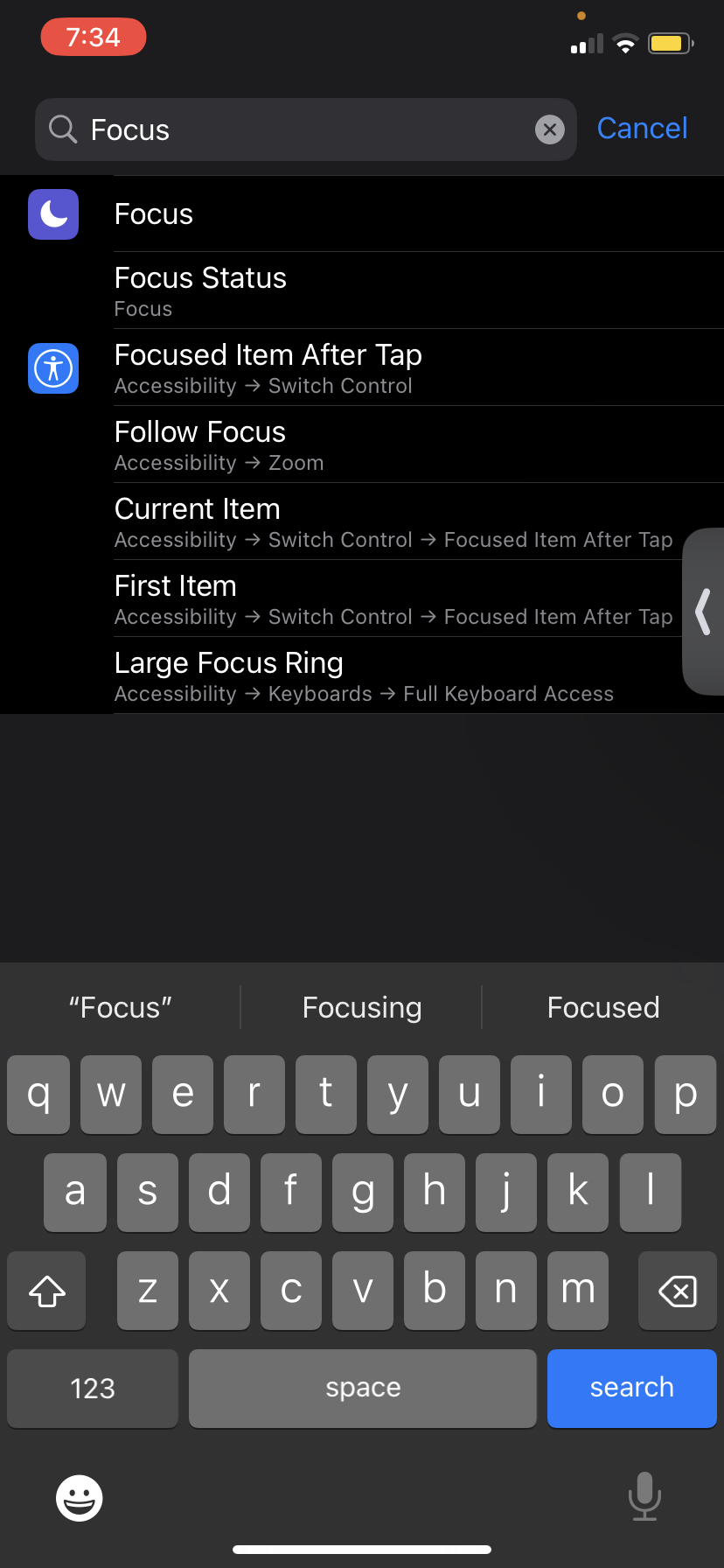
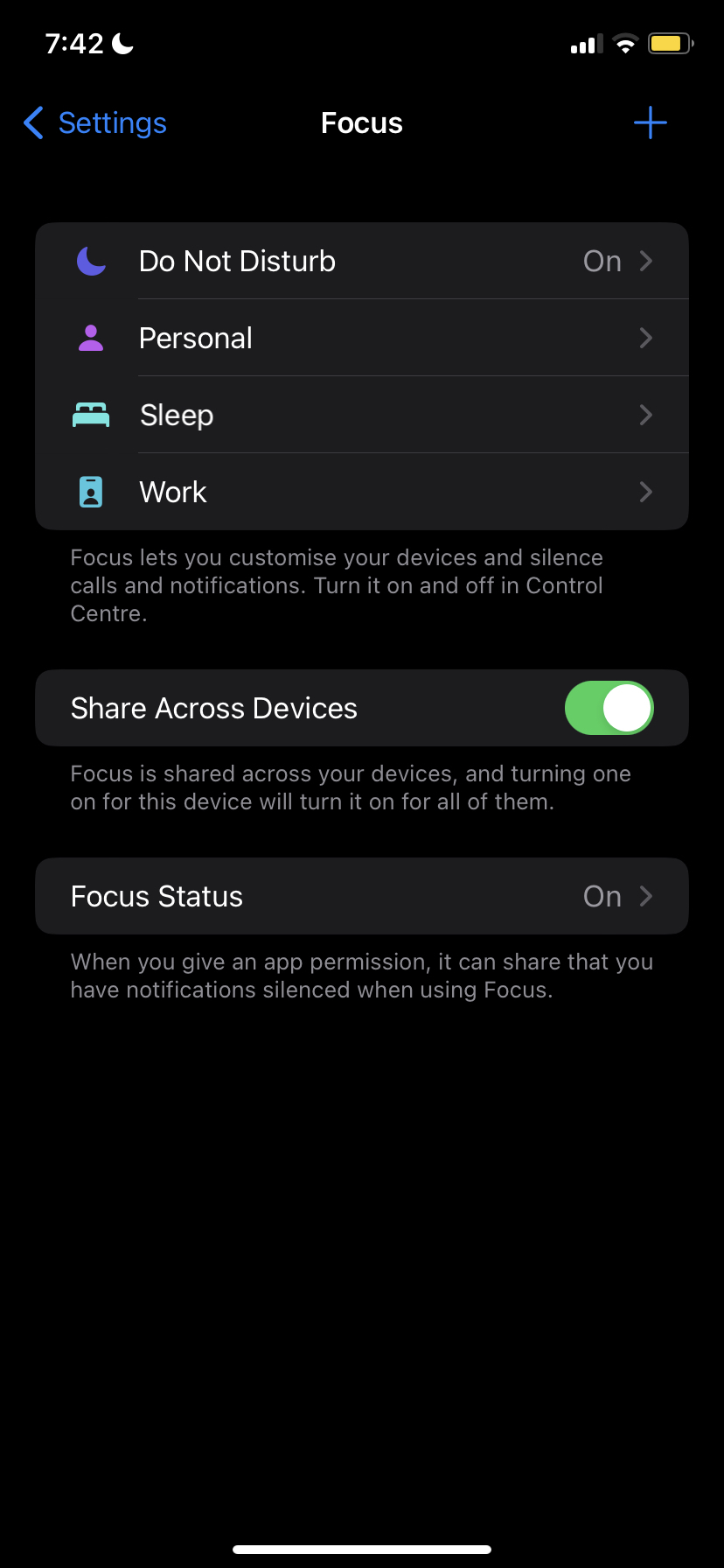
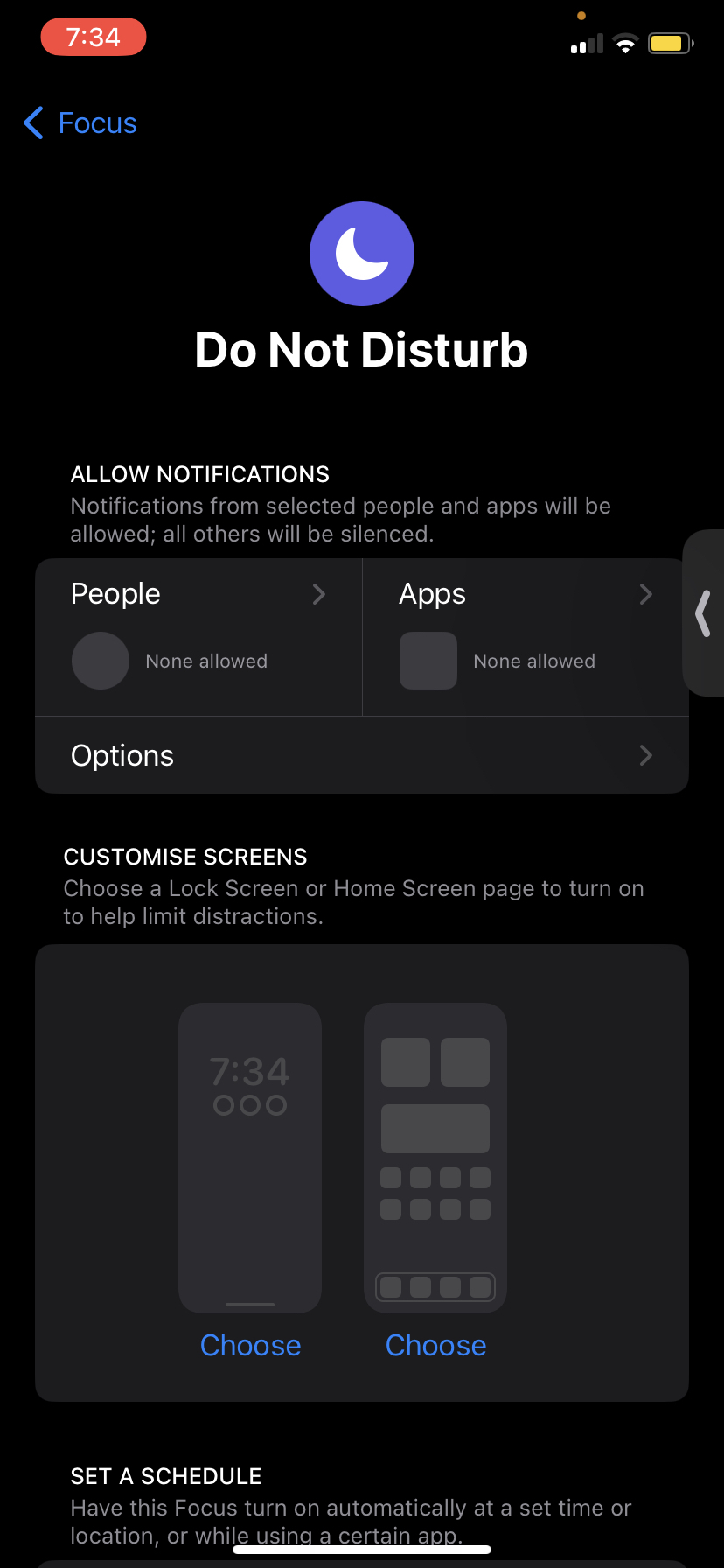
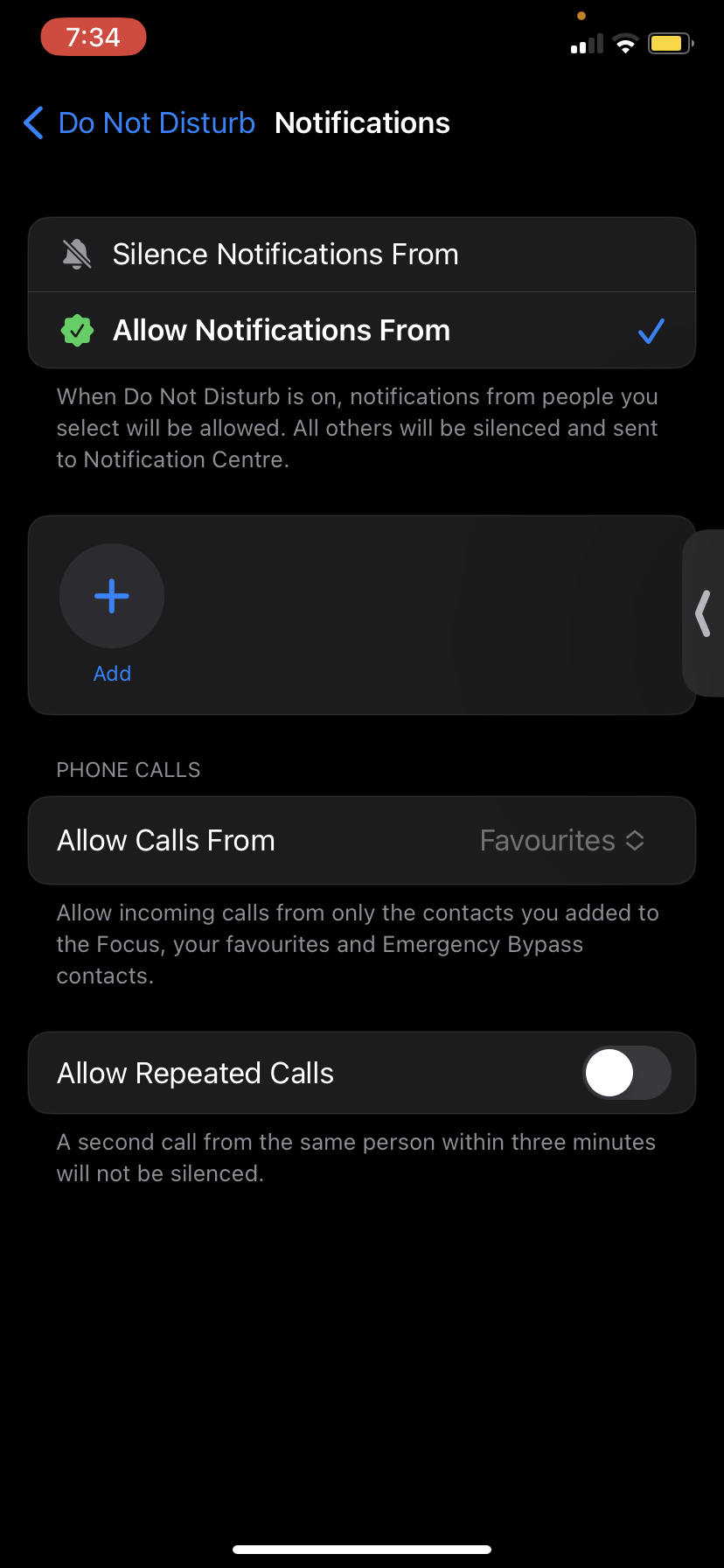
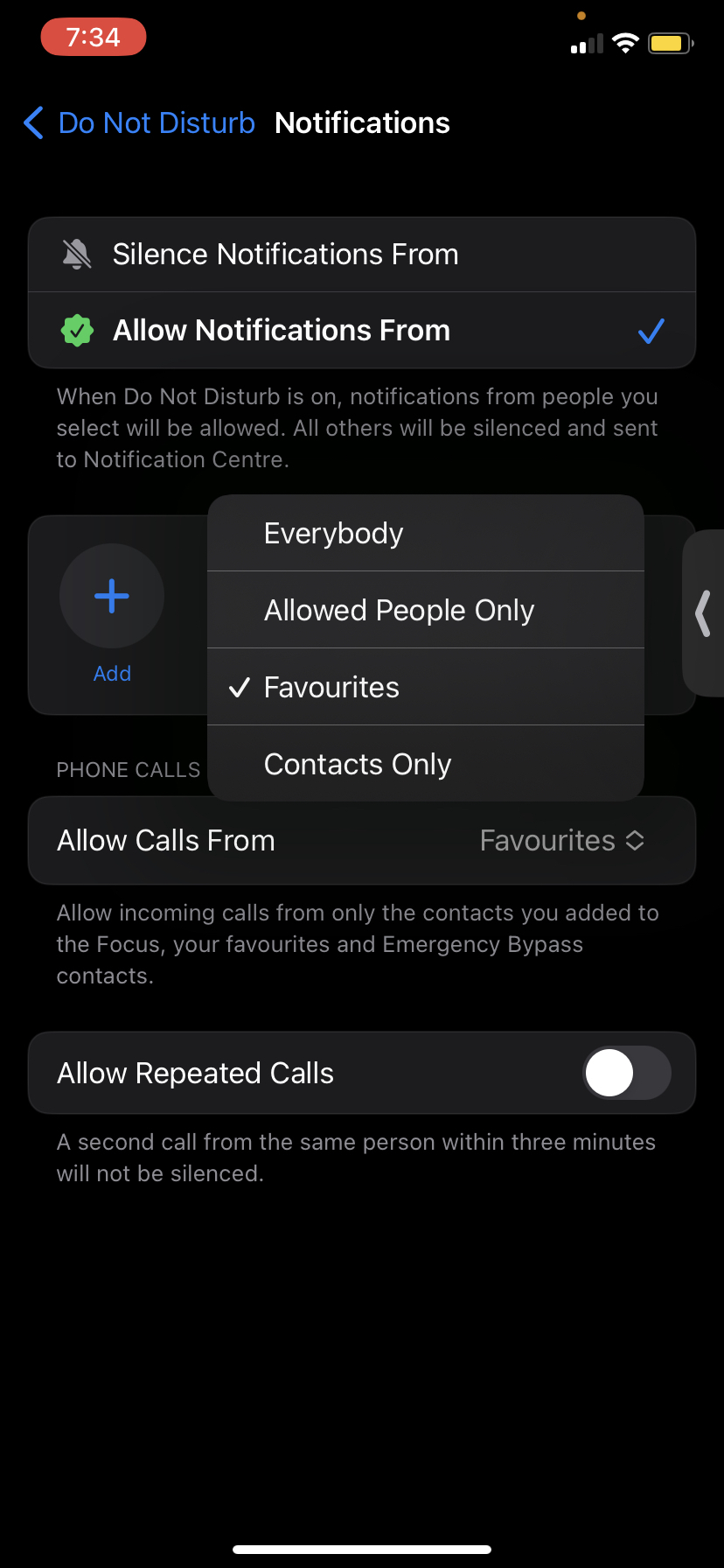
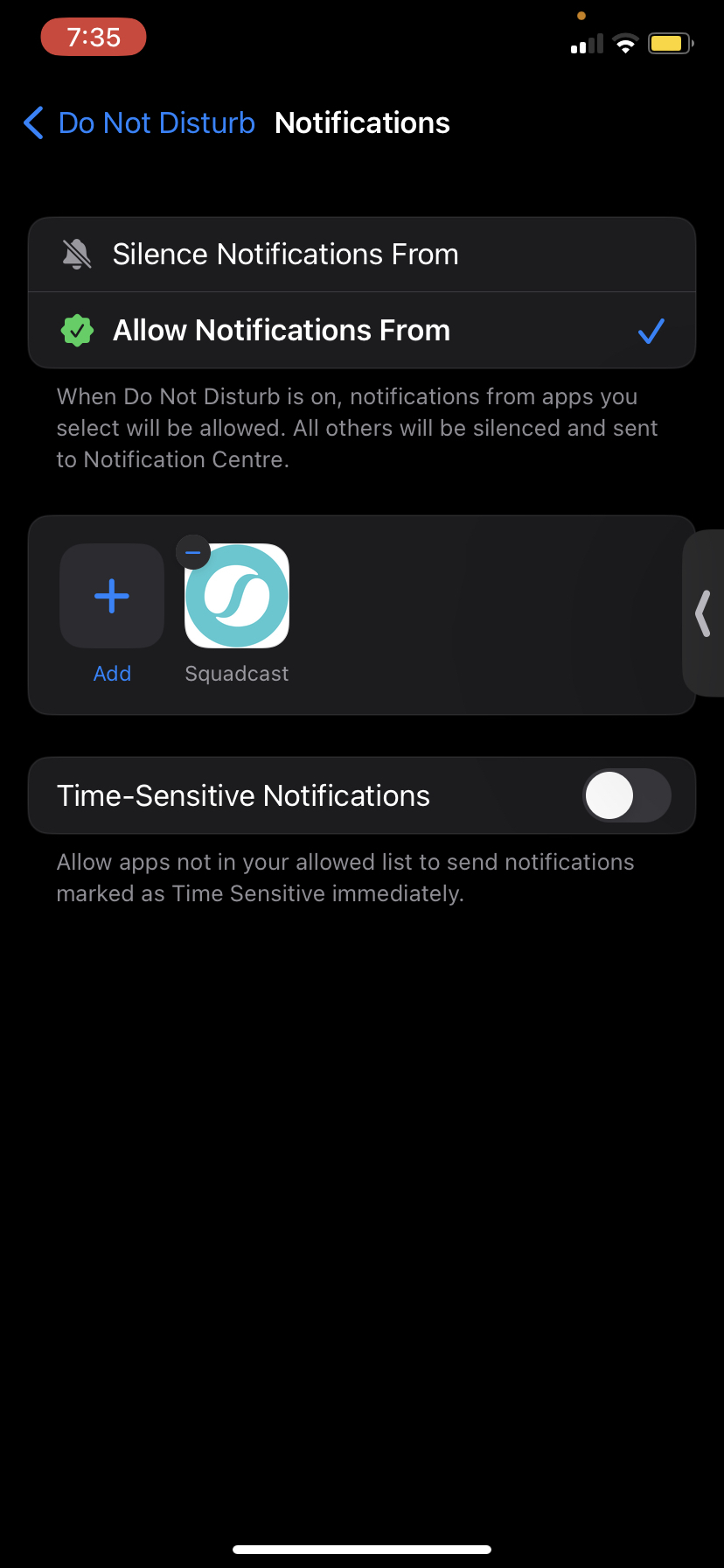
To override DND Mode for Incident Response Push Notifications, you will have to add Incident Response to your DND exceptions in your device's Settings App.
Refer to the flow as shown in the images below.
Custom Notification Sounds (iOS)
To customize the push notification sounds for your iOS device,
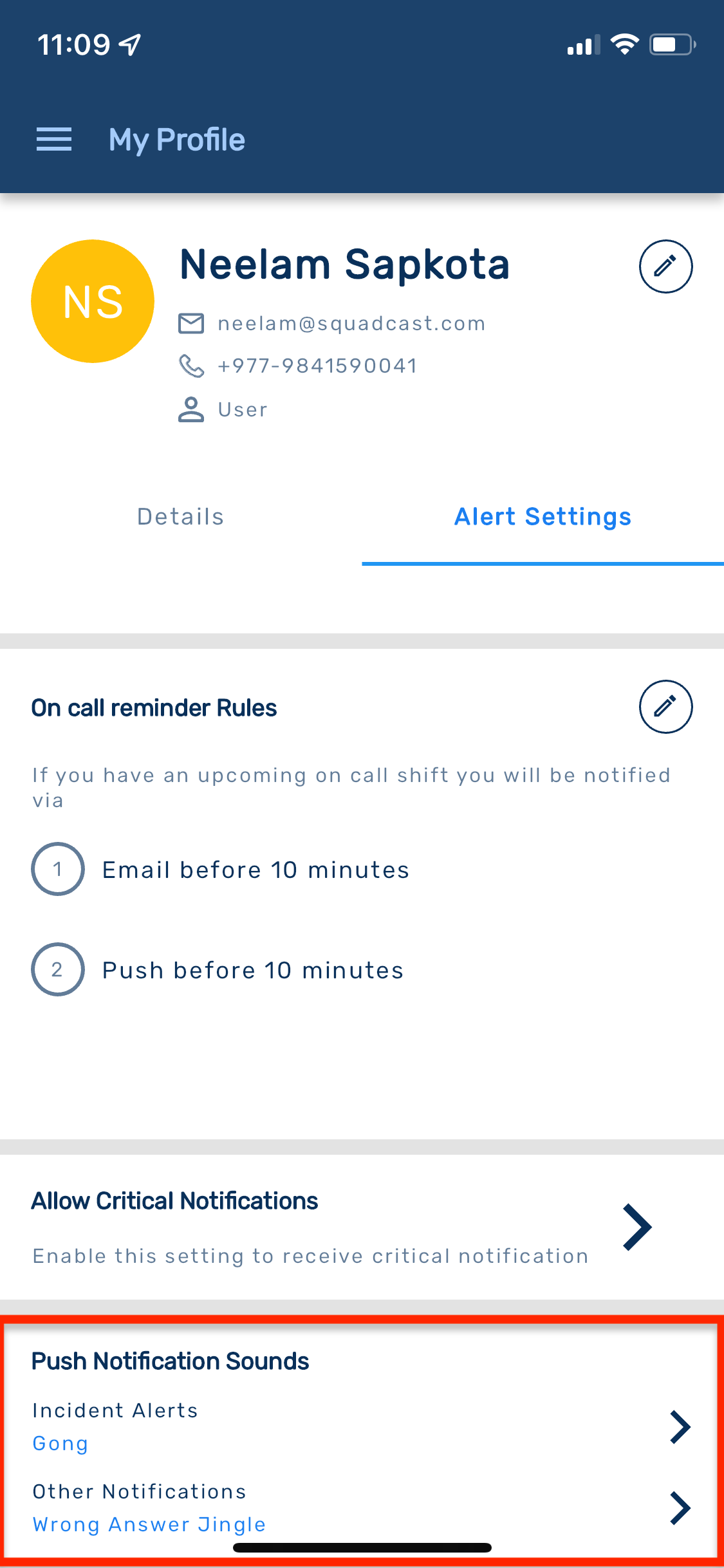
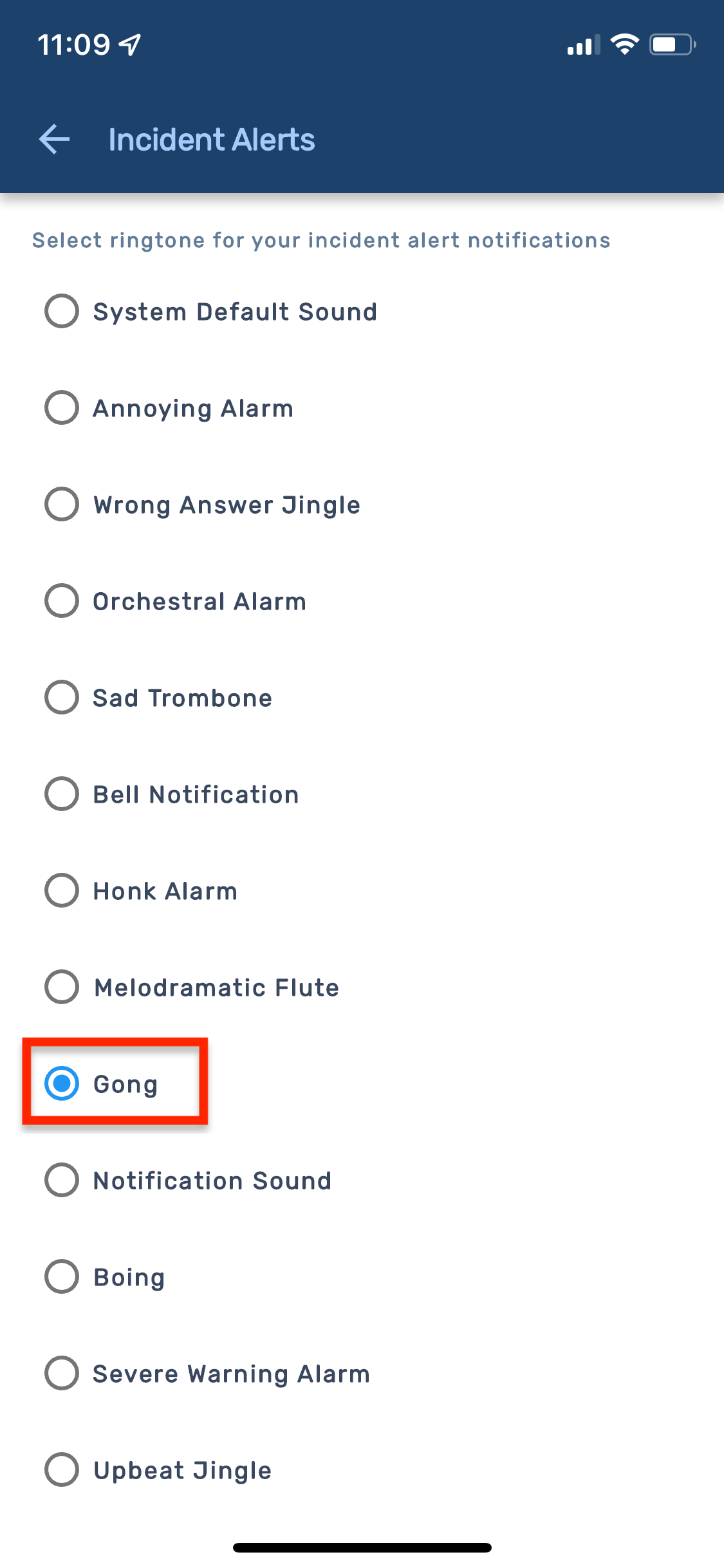
Navigate to My Profile -> Alert Settings -> Push Notification Sounds
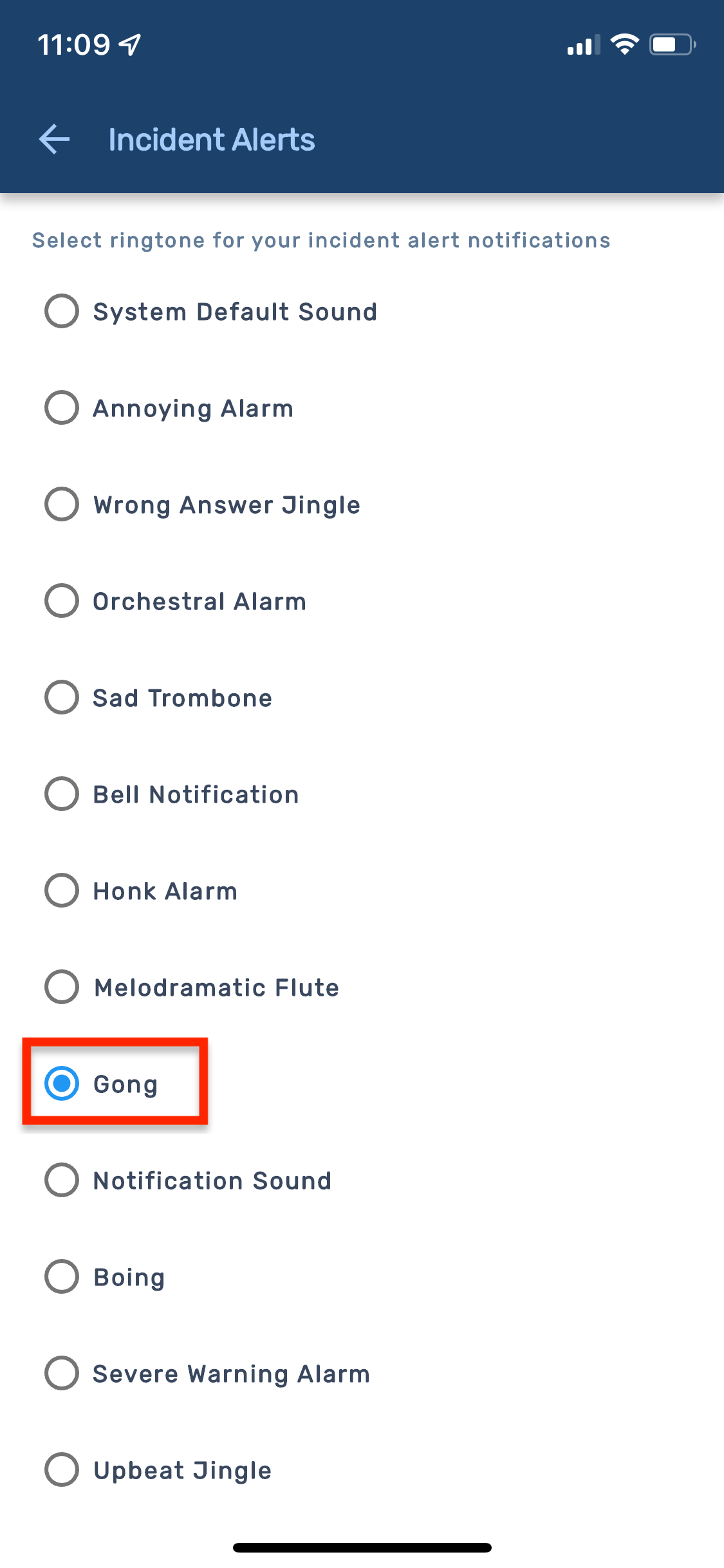
You can choose notification sounds for Incident Alerts and Other Notifications (On-Call Reminders and Notes @mentions) from the list of available sounds.
The notification sound you select is device-specific. This means you can customize notification sounds for individual devices you're logged into.
Please note that if you uninstall the app or clear its data, your notification sound will be reset to the default tone.
This functionality has been introduced in iOS app version 3.1.0.
Sound Credits: Thanks to the folks at Pixabay, Mixkit, and Freesound for the royalty-free sound effects.
Push Notification Sound and Volume
Push Notification Sound and Volume settings vary for Android and iOS devices:
Android
By default, notifications will play in your device’s default notification sound. To customize Push Notification Sound, follow the steps here.
Override System Volume (Android)
To ensure that Incident Notifications play at a volume you set, even when your device is in silent or Do Not Disturb mode, follow these steps:
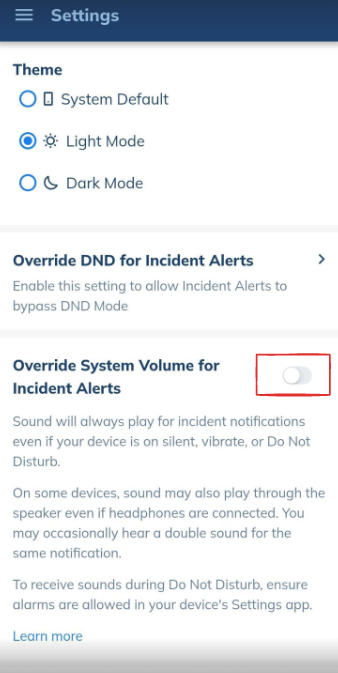
Navigate to Settings.
Activate the 'Override System Volume' toggle.
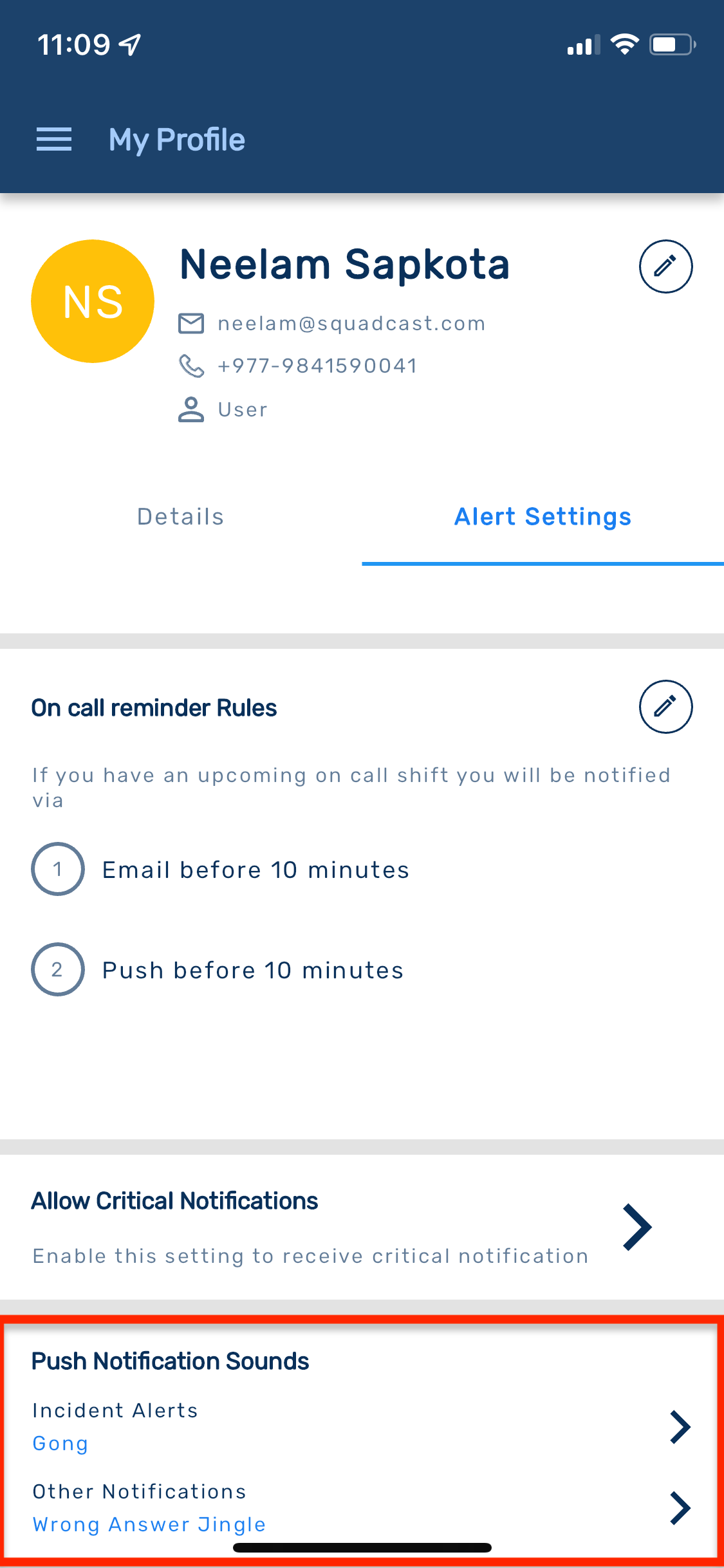
When Volume Override is enabled, incident notification sounds will play through both the Alarm and Notification channels
Speaker playback with headphones connected: On some devices, sound may also play through the speaker even if headphones are connected. This is default Alarm behavior on most Android devices.
Double sound: You may occasionally hear a double sound for the same notification. This is more likely when the Notification channel volume is higher than the Alarm channel volume.
To receive sounds during Do Not Disturb, alarms must be allowed in your device's Settings app. The steps to enable this may vary depending on your device.
iOS
If you’d like Incident Notifications to override your device’s volume, you should enable Critical Alerts for Incident Response. If you don't enable Critical Alerts for Incident Response, you will receive Incident Response Push Notifications at the volume you have set for your device.
When critical alerts are enabled, you’ll receive Incident Notifications at 100% volume, even if your device is on Mute mode or DND Mode (Check out this iOS Doc for more).
Refer to the flow as shown in the images below.
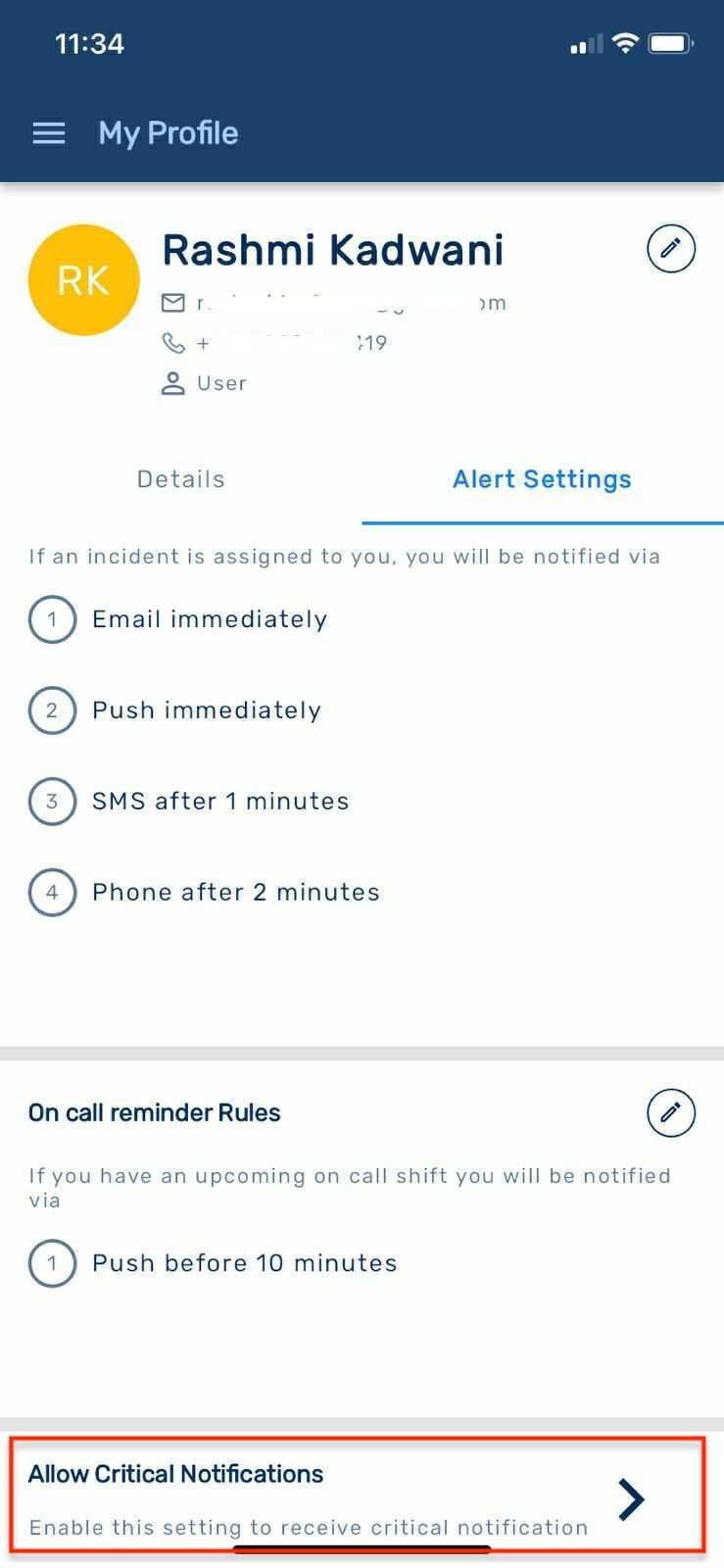
If you don’t want to receive Incident Notifications at 100% volume, you’ll have to disable critical alerts for Incident Response.
Custom Notification Sounds (iOS)
To customize the push notification sounds for your iOS device,
Navigate to My Profile -> Alert Settings -> Push Notification Sounds
You can choose notification sounds for Incident Alerts and Other Notifications (On-Call Reminders and Notes @mentions) from the list of available sounds.
The notification sound you select is device-specific. This means you can customize notification sounds for individual devices you're logged into.
Please note that if you uninstall the app or clear its data, your notification sound will be reset to the default tone.
This functionality has been introduced in iOS app version 3.1.0.
Sound Credits: Thanks to the folks at Pixabay, Mixkit, and Freesound for the royalty-free sound effects.
Excluded Countries
We use third-party providers to send out SMS and Phone call incident notifications. SMS and Phone call notifications are supported for all the countries across the world except for:
Cuba
Democratic People's Republic (North Korea)
Russia
Crimea
Belarus
Syrian Arab Republic (Syria)
Kazakhstan
We do not support creation of accounts or onboarding of users based out of most of the above countries. Even if onboarding happens, notifications through SMS and Phone will not be supported.
SMS and Phone Notifications to Iran
While we do send SMS and Phone call incident notifications to users in Iran, we cannot assure its 100% deliverability.
SMSs to China
Incident notification SMSs sent to users of Incident Response in China will contain only the Incident Title. Incident URL is not included due to government policies against the presence of any URLs in SMSs. However, users can quickly view and take action on an incident using the Incident Response mobile app.