
Slack for Incident Management
Incident Response integration with Slack allows you to collaborate efficiently with your team while working on incidents.
Incident Response incident notifications are sent right to your Slack Channel. Here, you can perform actions on incidents using the buttons or the Slack commands provided in this document.
Prerequisites
-
Only the Account Owner and Users with the
Manage Extensionspermission can enable, disable and manage Slack extension in Incident Response.
Integrate Incident Response with Slack
The users (with extension permission) can integrate Slack and select a default slack channel.
This will globally configure Slack for your Incident Response account. This means, that all the alerts for every service in Incident Response will be routed to the default Slack channel configured.
The email used by your user in Slack and Incident Response should be the same.
To integrate Incident Response with Slack:
-
Navigate to Settings -> Extensions.
-
Navigate to Slack -> click Integrate. A side panel will open, to authorize Slack integration with Incident Response, click Authorize.
-
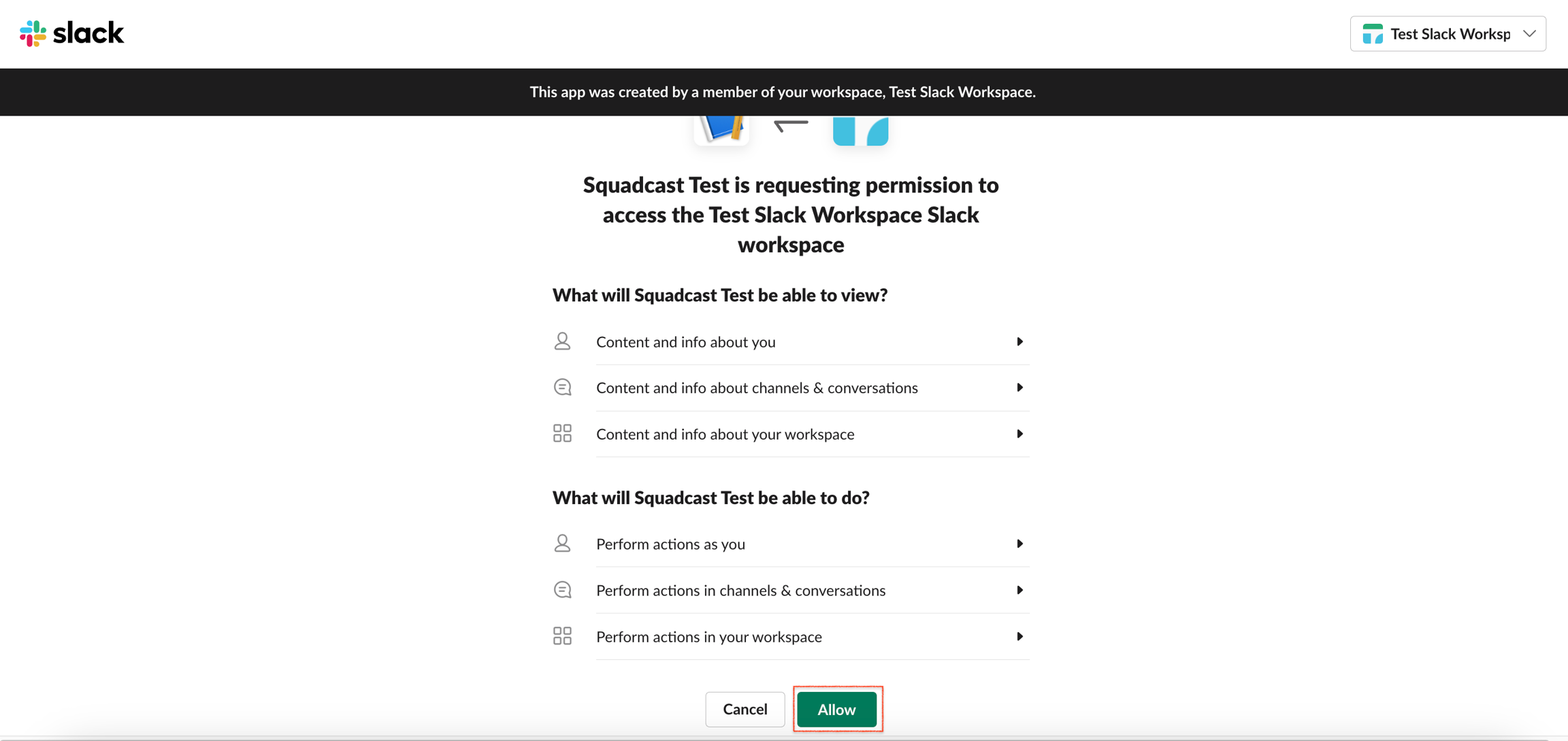
You will be redirected to Slack to approve specific permissions that Incident Response would need for this integration. Click on the Slack Workspace that you wish to integrate with your Incident Response account and then, click Allow.
Next, you will be asked to select a default Slack channel for your organization.
You can either select an existing channel from the dropdown or create a new channel in Slack. If you have added a new channel and don’t see the same in the dropdown, refresh the dropdown and it would appear.Navigate to your Slack Workspace
Open the desired channel you wish to integrate
In this channel, call the Incident Response Bot by using @squadcast
Next, navigate back to Incident Response, and click the Refresh button beside the Channel dropdown to refresh the list. Your Channel should be populated in the list now.
You can choose which notifications you want to receive from Incident Response. By default, all the incident-related notifications go to the thread of the main notification and also notify the channel
If you don’t want to receive these further notification updates on the channel, you can toggle off the “Send incident updates to the main channel”.\
- Send notifications for all the updates
- Send custom notifications
- Incident (Triggered, Acknowledged, Resolved, Suppressed)
Notes
Runbooks
Communication Channels
Tags
Postmortems
Task
SLO violating incident updates
Once you have configured the channel and selected the desired notification settings, click Save Slack Configuration.

You can also enter the channel ID if you don’t find the channel in the dropdown.
List of Slack channels displayed in the drop-down
By default, all the public Slack channels and the private Slack channels would be listed in the dropdown, in which the Incident Response Bot has been added.
If you do not find the desired channel from the list, then:

This completes the integration of Slack with Incident Response.
Revoke Slack integration with Incident Response
Click Revoke to remove the configured Slack integration at any time.
Update the Slack channel at the global level
To update the default Slack channel:
-
Navigate to Settings -> Extensions.
-
Navigate to Slack -> Select Channel. Select the new default Slack channel for all your Incident Response Services using the drop-down.
-
Click Save.
Configure Slack for a Service
Additionally, you can configure one Slack channel per service to receive notifications for incidents affecting only that service in this Slack channel.
This service-specific Slack channel will override the default Slack channel.
To configure Slack at the service level:
-
Navigate to Services -> Service Overview -> select or search for your desired service.
-
Click on the service to navigate to the Service Details page.
-
In the top right, select More -> Slack Channel.
-
Enter the specific Channel ID or Select a Channel from the drop-down.

List of Slack channels displayed in the drop-down
By default, all the public Slack channels and the private Slack channels would be listed in the dropdown, in which the Incident Response Bot has been added.
If you do not find the desired channel from the list, then:
-
Navigate to your Slack Workspace
-
Open the desired channel you wish to integrate
-
In this channel, call the Incident Response Bot by using @squadcast
-
Next, navigate back to Incident Response, and click the Refresh button beside the Channel dropdown to refresh the list. Your Channel should be populated in the list now.
-
Click Save.
And you’re done! All the incidents triggered by this service will be pinged on the selected channel.
Configure Slack channel for an Incident
Users can also create a dedicated Slack channel for an incident to receive only the incident-specific notifications in that channel.
You can create these dedicated Slack channels from Slack or the web app.
All notifications of this specific incident will be sent to this channel in addition to the default Slack channel (if configured).
To configure a Slack channel for an incident:
-
Navigate to Incidents -> Incident List -> select or search for a desired incident.
-
Click on the incident to navigate to the Incident Details page.
-
Under the Communication Channels section, click + or + Add Link button.
-
Click Create Slack Channel -> type in the channel name for this incident.
-
Click Save.
To configure a Slack channel for an incident, directly from Slack:
-
On the Incident notification, click More Actions
-
Click View / Create Incident Channel -> type in the channel name for this incident.
-
Click Save.
And you’re done! This will generate a dedicated Slack Channel for your Incident.
The channel name should not contain any special characters or uppercase letters.
Once the Incident is resolved, you can archive the Slack Channel using the Archive button on the right.
Using Slack as an Alert Source
To create incidents automatically in Incident Response from Slack, check out Slack as an alert source.