
Activate your WHD license
If you are evaluating Web Help Desk, you do not need to purchase and apply an activation key. For the next 14 days, you will have unlimited tech accounts. After 14 days, the tech accounts are deactivated. Your single admin or tech account remains active, but all advanced features are disabled in the Setup menu. These features include:
- Assets
- SolarWinds integration
- Processes
- Surveys
- Parts & Billing
To continue using the application, contact our sales team to purchase a Web Help Desk license. After you activate your license, the tech accounts and product functionality are restored.
See the following sections:
Retrieve the activation key
If you are evaluating WHD and received a license key from a SolarWinds representative, you can skip this procedure. If not, you can retrieve your activation key from the Customer Portal.
-
You will need your SolarWinds Customer ID (SWID) and password to log in to the SolarWinds Customer Portal and retrieve your license key. If you have not completed your customer portal individual profile or cannot locate your SWID and password, submit a ticket to Customer Support for assistance.
-
After you apply a license key, you cannot change the license back to a trial or free single-seat license.
-
If you are logging in to the Customer Portal for the first, time, see How do I access the Customer Portal for instructions.
-
Log in to the SolarWinds Customer Portal.
-
Click Licenses > Manage Licenses.
-
Above the product list, click the View drop-down menu and select Web Help Desk.
- In the Your Selections menu, locate your product version.
-
Under License Activation information, locate the activation key.

- Copy the activation key and save it to a file.
- Log in to WHD.
Apply the activation key
After you obtain your license key, apply the license key to Web Help Desk. Activate the license online or offline based on whether your Web Help Desk system can reach the SolarWinds website.
Activate the license online
If the Web Help Desk server has Internet access, use online activation for the fastest, easiest license activation.
-
Log in to WHD as an administrator. If you are on the Get Started panel of the installation wizard:
-
Click Login as admin to continue setup.
-
If you agree, click I accept the terms of the License Agreement.
-
-
Click Setup > General > License.
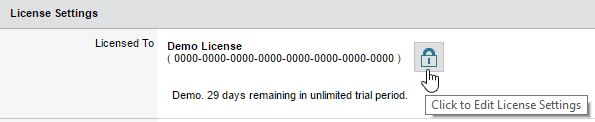
The License Settings page opens.
-
Click the padlock to edit the license settings.
-
Enter the activation key, and click Activate.
The Web Help Desk license is activated. The activation automatically synchronizes your customer contact details with your account on the SolarWinds Customer Portal.
Firewall or access control requirements
The WHD server requires outbound HTTPS (TCP 443) access to the following SolarWinds hosts for online license activation, deactivation, and periodic sync:
| Host | Purpose |
|---|---|
| licensing.solarwinds.com | License activation/deactivation and periodic sync |
| licenseserver.solarwinds.com | Gen3 license server communication |
| licensestatusserver.solarwinds.com | License status verification |
No inbound ports need to be opened. If these hosts cannot be reached, use offline activation instead.
Activate the license offline
If the WHD server is not connected to the Internet, apply the activation key offline using another computer with internet access.
-
Log in to WHD as an administrator. If you are on the Get Started panel of the installation wizard:
-
Click Login as admin to continue setup.
-
If you agree, click I accept the terms of the License Agreement.
-
- Locate the unique Machine ID code.
Click Setup > General > License.
The License Settings page opens.
Click the padlock to edit the license settings.
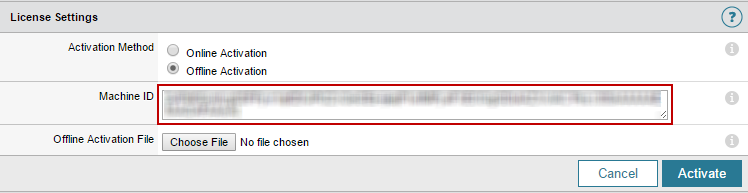
Click Offline Activation.
Copy the unique code in the Machine ID field, and paste it to a file in a text editor (such as Notepad).
- Save the file.
- Transfer the file to another computer with Internet access.
- Generate and download the license file.
- From the computer where you transferred the file, log in to the SolarWinds Customer Portal.
- Click Licenses > Manage Licenses.
- Above the product table, click the View drop-down menu and select Web Help Desk.
In the License Activation Information column, locate your WHD license and click Activate license manually.
In the Activate license screen, enter your name, email address, phone number, and the computer name to generate a license key file.
- Locate the text file with the Machine ID code from the WHD server.
Paste the unique machine ID code from your computer into the Unique Machine ID box.
The Customer Portal validates the code. If the code is valid, a validation message is displayed.
- Click Generate License File.
- Follow the prompts on your screen to download the license file.
- Transfer the license file to the WHD server.
- Upload the license file into the WHD Administrator Console.
On the WHD server, return to License Settings in WHD.
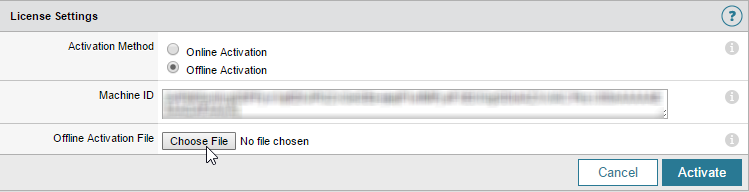
- Click Choose File and select the license file.
Click Activate.
The WHD license is activated.
If WHD generates an error during activation, see Error is displayed when activating a WHD license for troubleshooting information.
Assign license seats to your tech accounts
-
Log in to WHD as an administrator.
-
Click Setup > General > License.
-
In the Tech Licensing box, select the checkbox next to each active tech and administrator who will log in to the application.
 If you have more tech accounts than your license allows, deactivate or delete the excess accounts or upgrade your license.
 -
Click Save.
About migrating your license to a different server
If you plan to migrate your license to another server, deactivate your license on the original server. Otherwise, you cannot activate the license on the new server. Your Web Help Desk license can only be active on one server. You can deactivate your license online or offline.
If you are running Web Help Desk in a clustered deployment, activate your license only when the primary node is migrated to a new node.
About reinstalling a license on the same server
Servers running Microsoft Windows Server or macOS will usually preserve your Web Help Desk license when the software is uninstalled and reinstalled on the same server. However, when you uninstall the software on a system running Linux, your license is deleted.
The safest method to uninstall and reinstall Web Help Desk is to deactivate your license before you uninstall the software. When completed, reactivate your license after you install the software on the new server.
Activate your license in a clustered deployment
In a clustered deployment, your license is bound to the primary node (physical or virtual) in the cluster. Ensure that the primary node is always available to activate or deactivate your license.
For an existing deployment, take all secondary nodes offline and upgrade the primary node. Be aware that if the primary node is down for longer than a week, the secondary nodes are deactivated.
For new installations, install the primary node and activate your license before you configure your load balancer or deploy your secondary nodes.
If you cannot activate or deactivate your license, you may have an issue with your network connection between the primary and secondary nodes—for example, network communications are blocked or the primary node port(s) are configured incorrectly. Try to connect directly to your primary node through your web browser (bypassing the load balancer) and manipulate the license in this location. For further assistance, contact SolarWinds Customer Support.