
Custom Poller Thresholds
This view lists all currently configured Universal Device Pollers in the left pane.
Specify thresholds to get notified when values polled by UnDPs exceed a specified level.
If values polled by UnDPs on a device reach a certain level (critical or warning threshold), the UnDP on the device is highlighted in the SolarWinds Platform Web Console.
To get notified about exceeding a threshold in an email, configure an alert.
To see pollers with exceeded thresholds in a map, see View UnDP status on Network Atlas maps.
- Log in to the SolarWinds Platform Web Console as an administrator.
- Click Settings > All Settings in the menu bar.
- In the Thresholds & Polling grouping, click Custom Poller Thresholds.
- Select a poller.
- Select whether the expected polled value is a Text or a Number.
The Poller Value Type determines how the polled value will be interpreted. It also influences the set of possible comparison functions.
- For the Number type, available values include
is greater thanorless than. - For the Text type, available values include for example
contains.
- For the Number type, available values include
- Build conditions to define both Warning and Critical Thresholds:
- Select whether All Child Conditions Must Be Satisfied (AND) or if only At Least One Child Condition Must Be Satisfied (OR).
- Select a comparison relation, and provide a threshold value on which the comparison is based.
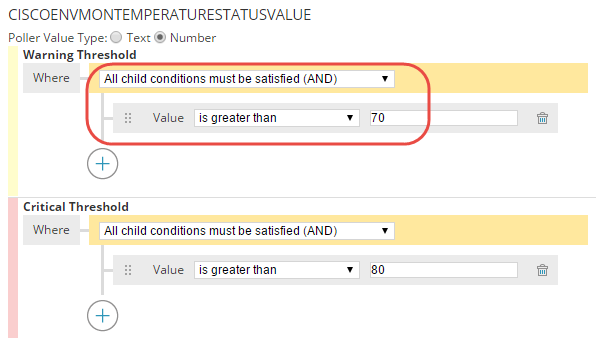
- Click + to add additional conditions, as required, to define the poller threshold.
- After configuring all thresholds, click Submit.
If a value reported by the device belongs to the range defined by the Warning Threshold, pollers in maps will be yellow.
If a value reported by the device belongs to the range defined by the Critical Threshold, pollers in maps will be red.