CircleCI
CircleCI Actions
CircleCI is a modern continuous integration and continuous delivery (CI/CD) platform. CircleCI automates build, test, and deployment of software.
Incident Response’s Extension with CircleCI enables you to rebuild projects from within the Incident Response platform.
This is primarily helpful in a situation where you want to quickly mitigate a customer experience issue by rolling back to an older successful build.
Prerequisites
-
Only the Account Owner and Users with the
Manage Extensionspermission will be able to enable, disable and manage Extensions in Incident Response
Enabling CircleCI Extension
-
Navigate to Settings and select the Extensions tab from the left navigation sidebar
-
Move over to the CircleCI extension and click on Integrate
-
In your CircleCI dashboard, move over to User Settings
-
Click on Personal API Tokens and then, Create New Token to create a new API token for Incident Response
-
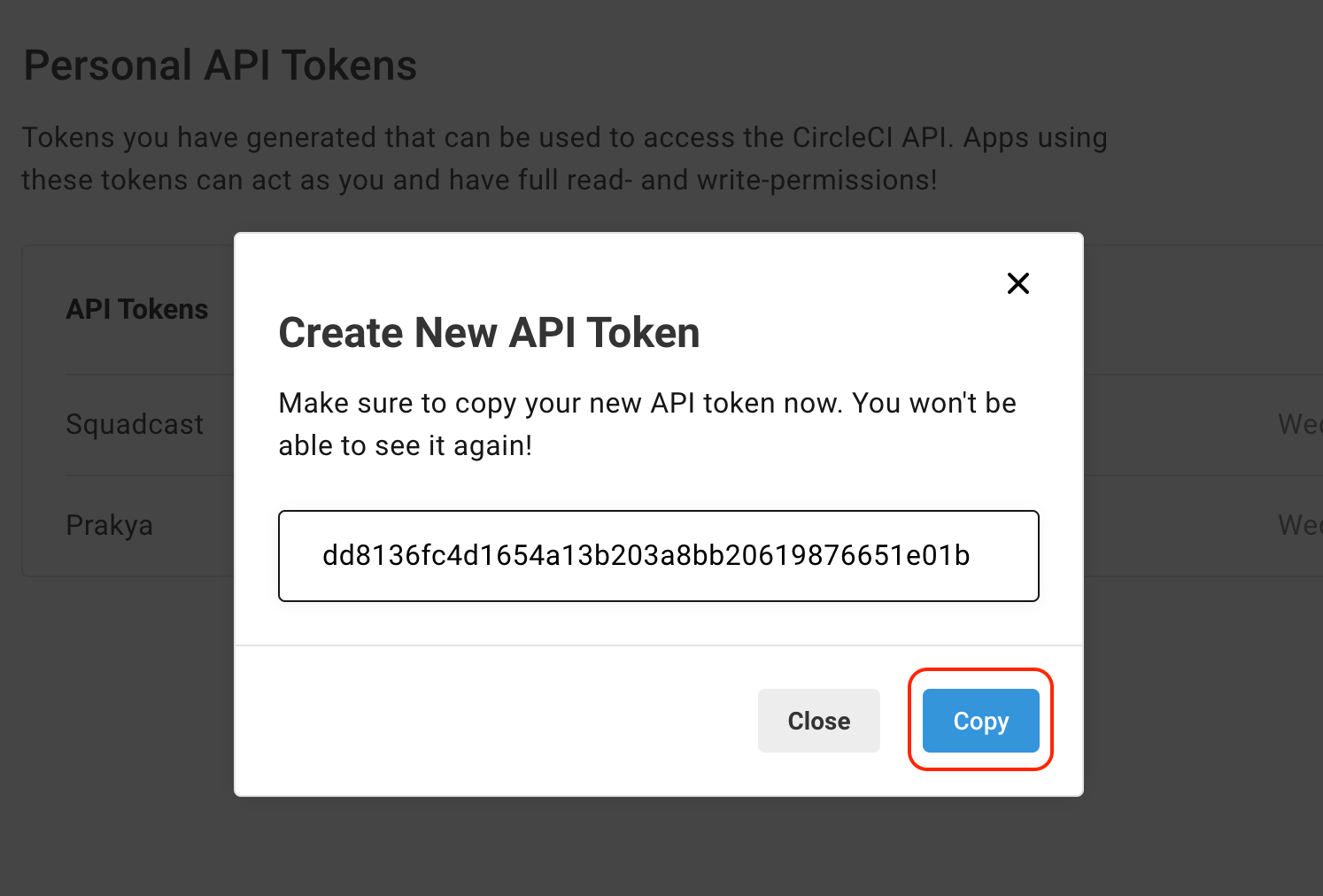
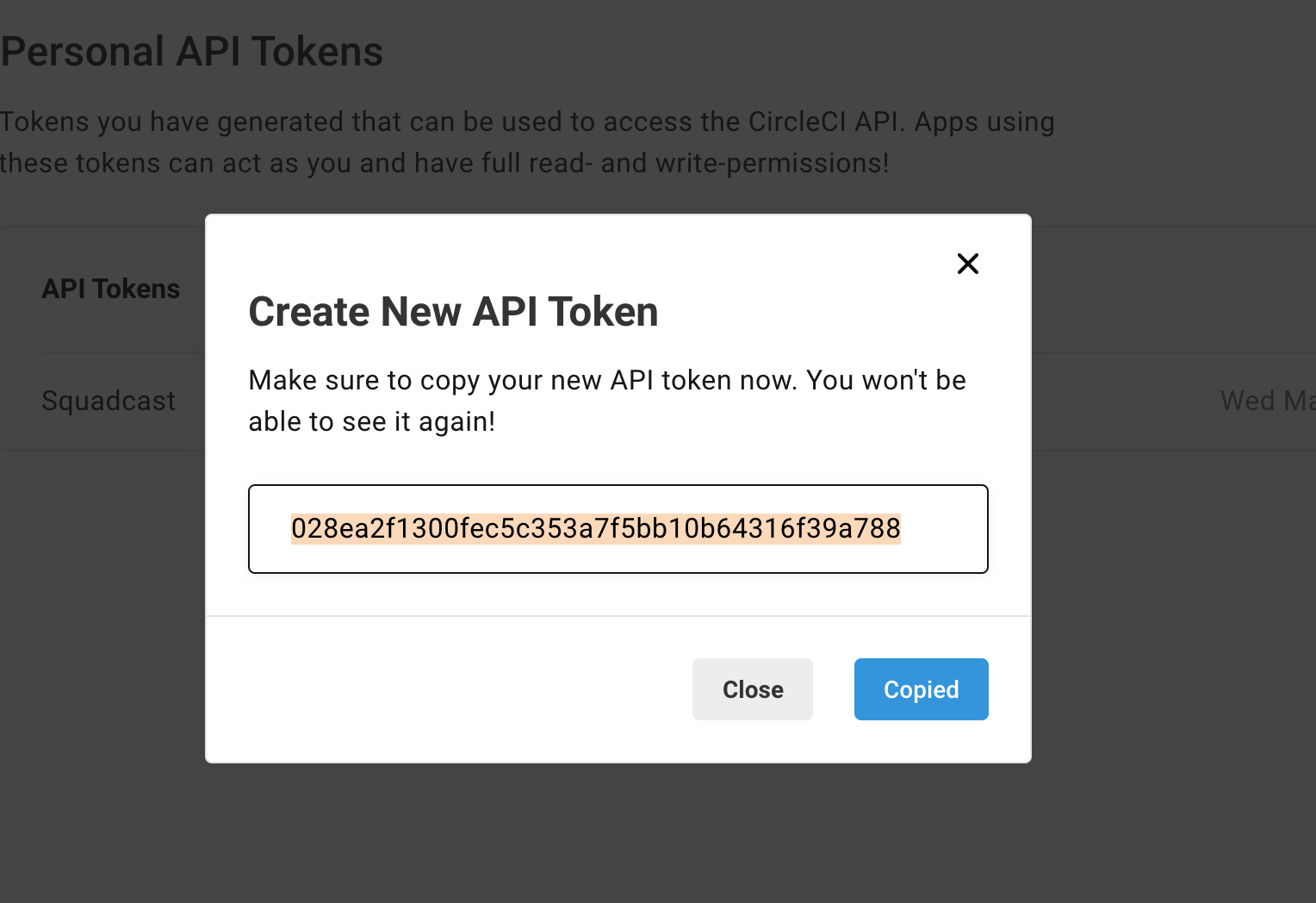
Use a meaningful name for the token like “Incident Response” or “Incident Response Incidents”. Click on Add API Token to save and view the API Token
Copy the API Token shown in the CircleCI screen
Paste the copied API Token in the Incident Response CircleCI extension screen and click on Save to enable your CircleCI integration



Your CircleCI integration is good to go and you will be able to perform CircleCI actions directly for any incident.

Using CircleCI Actions
Now that the CircleCI extension is enabled, follow the steps below to understand how to take CircleCI actions from within Incident Response.
-
Navigate to the Incident Details page of an incident for which you want to take the CircleCI action. In this example, we're choosing the incident below to demonstrate.
-
Click on Actions to see a list of allowed/enabled actions for your Organization
-
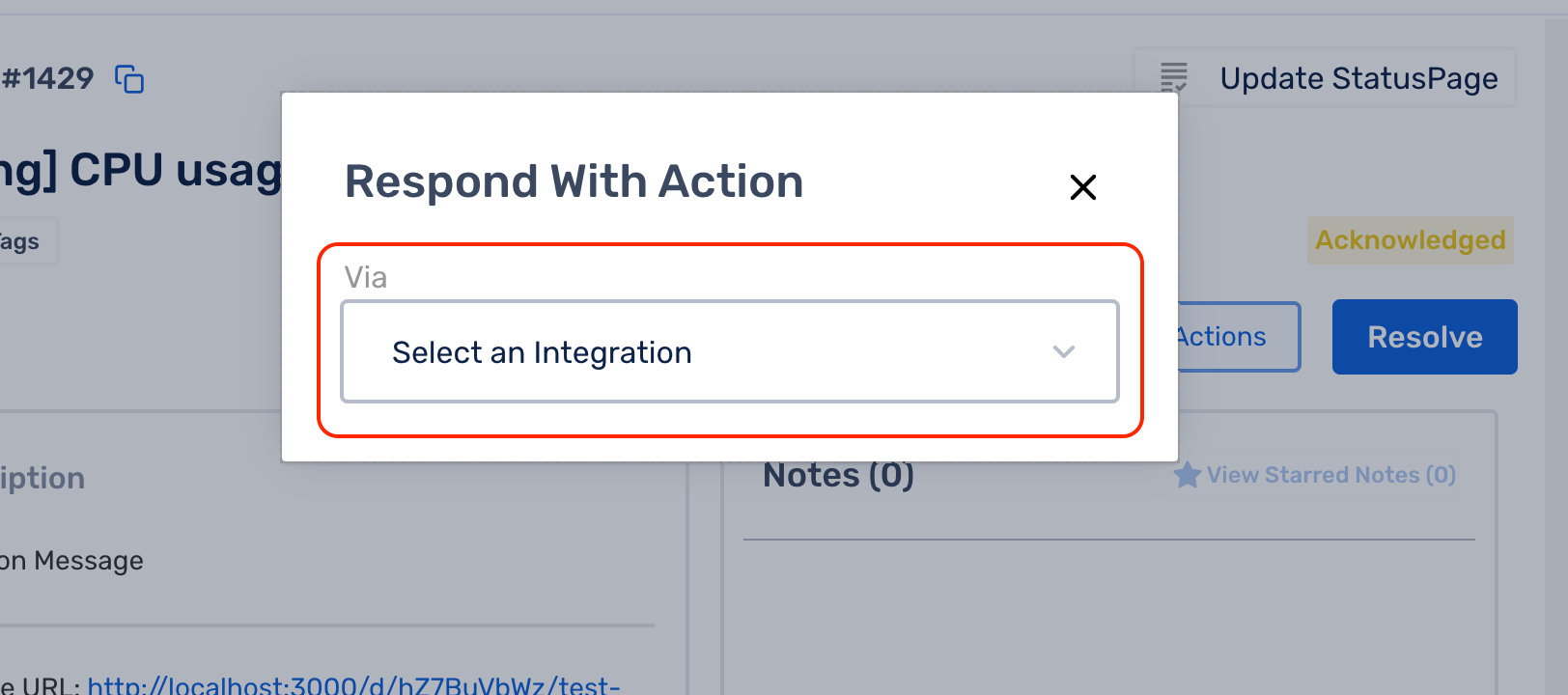
Select CircleCI from the list of allowed/enabled actions
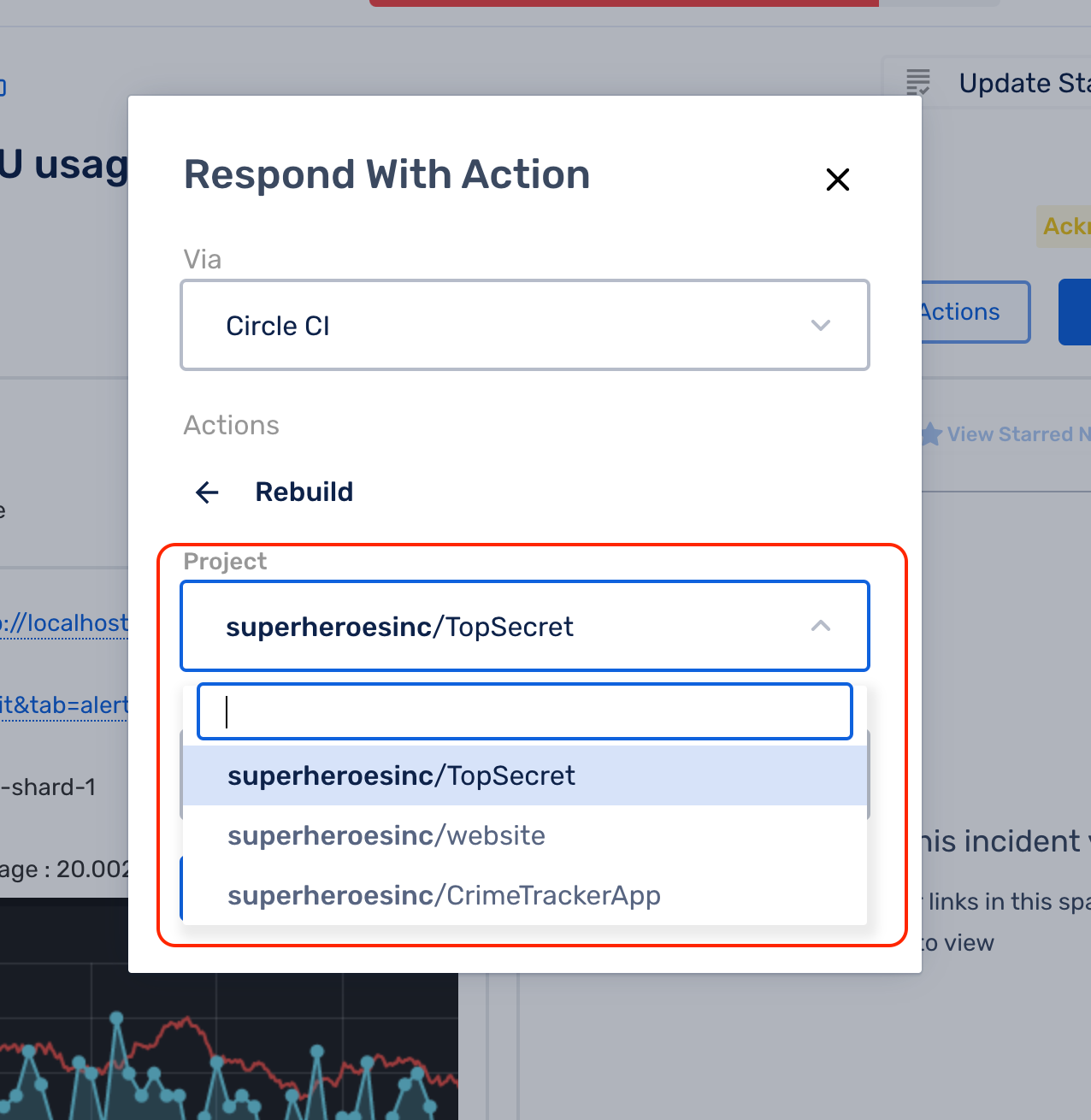
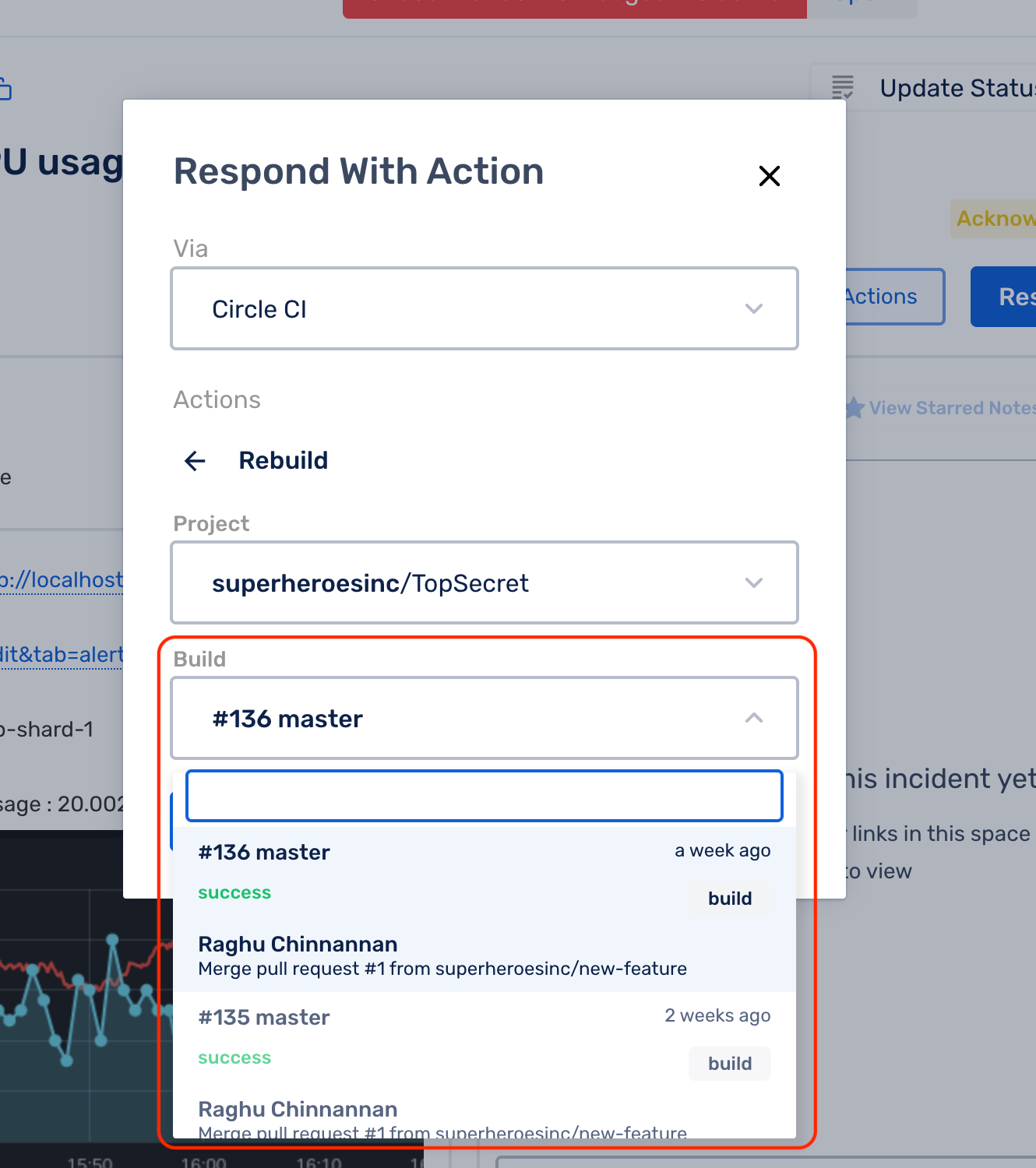
Click on Rebuild from the Actions to see a list of projects you can take this action on
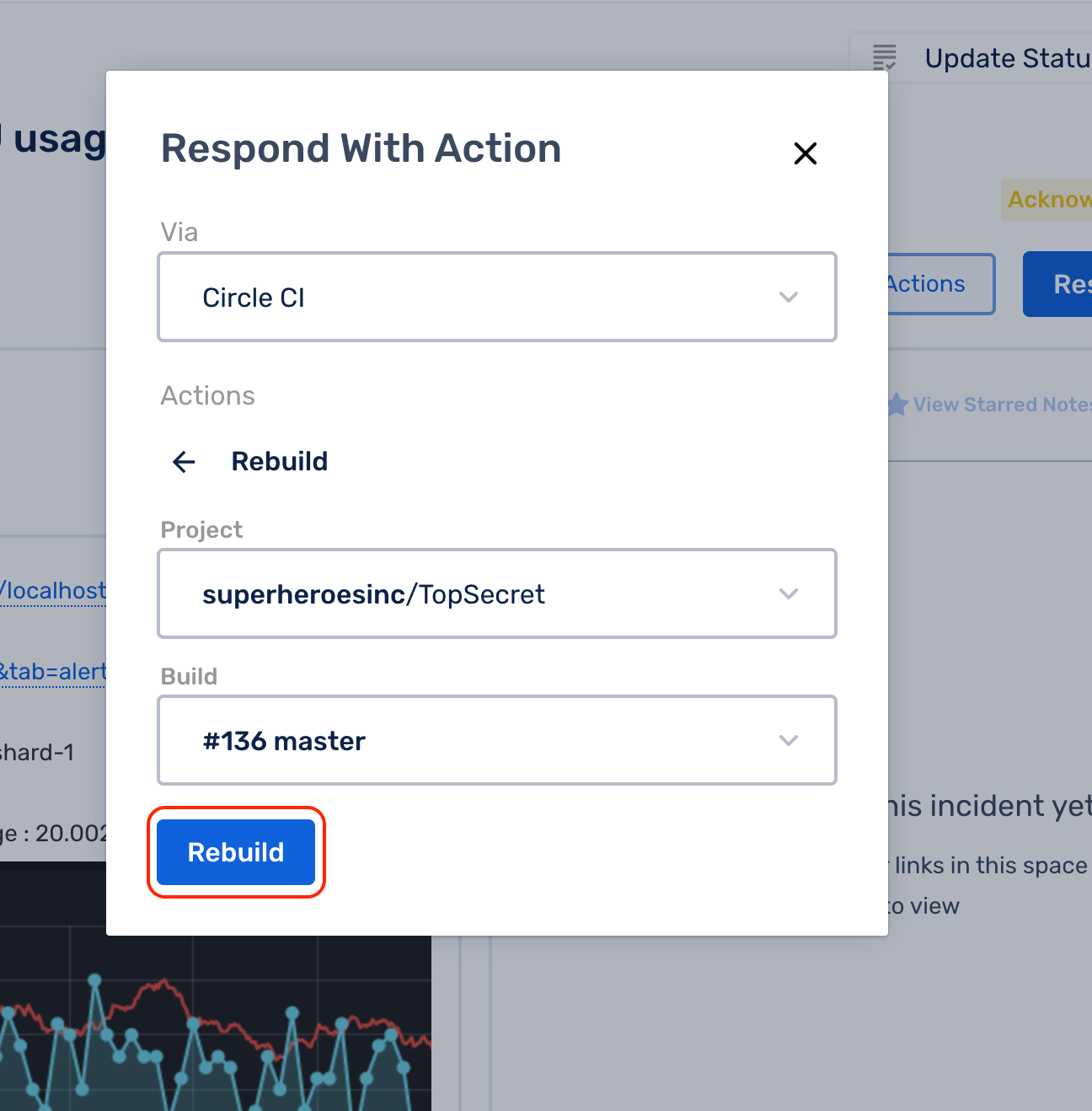
Click on a Project of your choice and the Build you want to rollback to
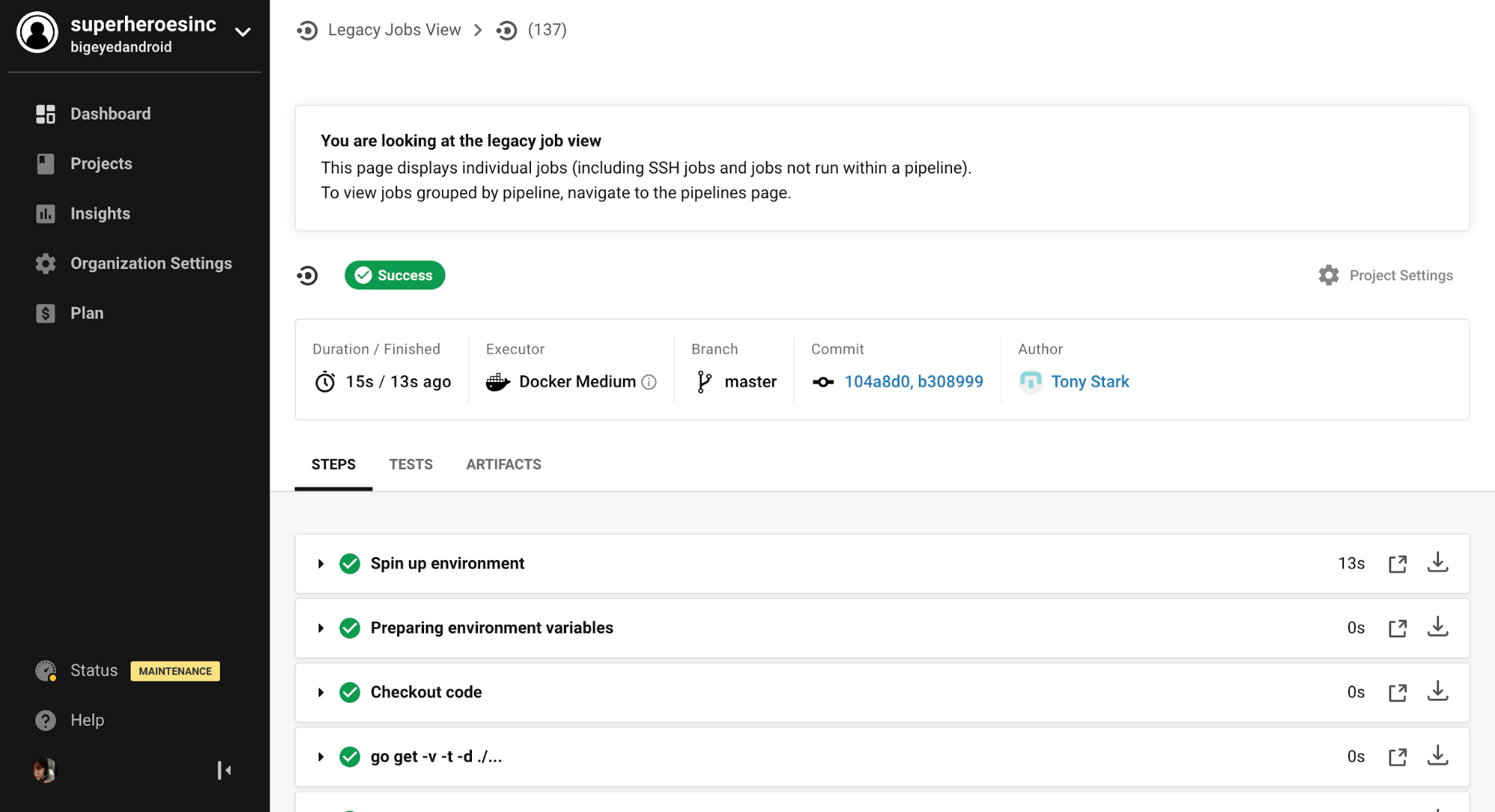
Click the Rebuild button to trigger the build again and you can see the link to the CircleCI build in the resulting screen\



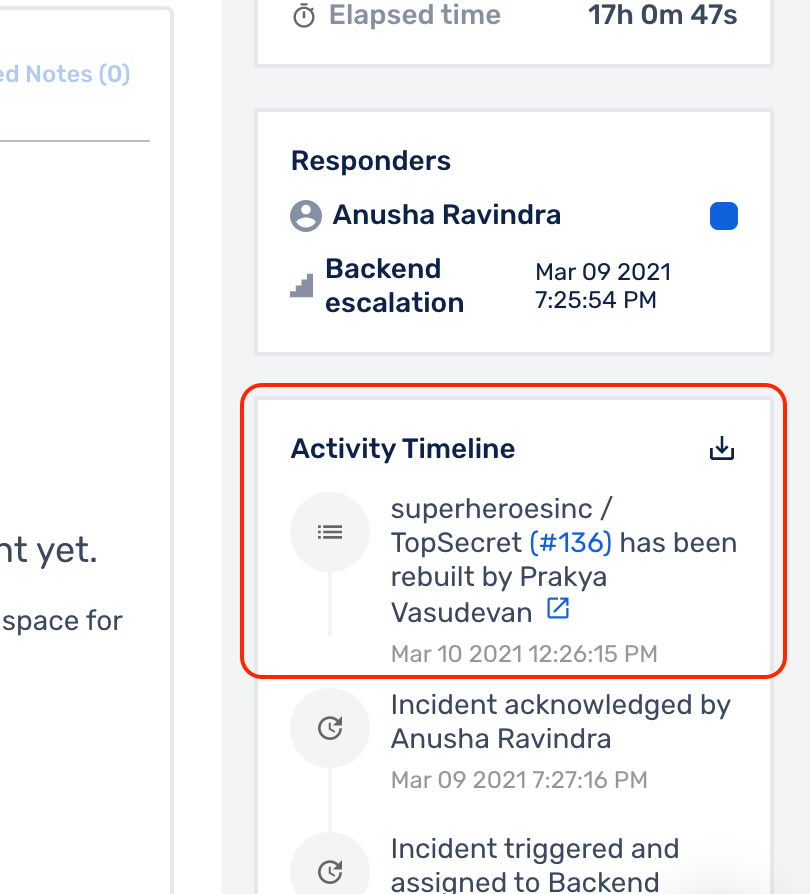
You will also be able to see the actions performed in the Incident Activity Timeline on the right.
The link will take you straight to the CircleCI Jobs View screen showing the result of the triggered build action.