
Incidents Details
An incident represents an issue that needs to be addressed and resolved. Incidents trigger on services, and a service’s escalation policy prompts notifications to go out to on-call responders to remediate the issue.
Incident Statuses

Incident Details Page
To view the Incident Details Page, select the Team from the team picker on the top -> Navigate to the Dashboard or the Incidents page from the sidebar and open incidents.

Click on any Incident from the Incident List to view the Incident Details page.

The Incident Details page has many components:
| Component | Description |
|---|---|
| Incident ID |
A unique ID for the incident
Note: To copy this Incident URL to the clipboard, use the Copy button on the right |
| Incident Message | The displayed title of the incident |
| Incident Watchers | Incident Watchers can choose to receive notifications for all the updates of an Incident. This allows any user/stakeholder to act as an observer of the incident. You can customize your subscription to the incident by choosing between the watch options. Know more about Incident Watchers here. |
| Incident Tags |
Tags are key-value pairs, added to an incident. They allow you to quickly see relevant information, such as severity or environment, for a particular incident rather than needing to review all of the related alerts |
| Incident Description | Incident Description i.e. the alert information along with images and links sent by the Alert Source |
| Notes | Incident Notes enable you to add important notes for you and your team that can help mitigate an incident faster |
| Runbooks |
Runbooks are a “how-to” guide for completing a commonly repeated task or procedure while working on a critical incident. Note: Simple Runbooks will be available for accounts in the Pro and Enterprise plans. To attach and reference runbooks to your incident, click on the Attach Runbooks button -> Check the runbook you wish to attach -> Click Add Runbook |
| Tasks |
Tasks are instructions or to-dos for other team members or even follow-up tasks for an incident. Note: Tasks will be available for accounts in the Pro and Enterprise plans. To add your tasks, click on the Add Task button -> Add your Task -> Click on Add Task again, to save Once added, you can Edit/Update and Delete the Task. |
| Acknowledge | To mark an incident as Acknowledged |
| Reassign | To reassign an Incident to another User, Squad or an Escalation Policy |
| Resolve | If Resolution Reason is marked mandatory for an organisation, incident cannot be resolved without providing a reason. Otherwise, user can simply go ahead and mark incident as resolved. |
| Actions | Actions are used to create JIRA tickets or take actions via Circle CI |
| Incident Details |
Incident Details displays:
Hover over the created field to view the exact Date and Time of the creation of the incident. |
| Responsiveness |
Responsiveness displays: |
| Communication Channels |
Communication Channels help you add video calls, chatops and external links to an incident. Additionally, you can create a dedicated Slack Channel for an incident using the Communications Card. To add a Communication Channel, Click on +Add Link -> Select the type of channel you want to add -> Add the link and Text to Display for your Communication Channel -> Click on Save Once added, you can Edit/Update the Communication Channel. Any activity in the Communications Card, gets reflected on the Activity Timeline of the incident. |
| Responders | Responders will display the list of all Users, Squads or Escalation Policies that were involved during the lifecycle of the incident. Select Notification Logs to open up logs of all the notifications generated for the incident |
| Activity Timeline |
Activity Timeline will indicate the list of all activities performed on this incident in reverse chronological order Note: Activity Timeline will show incident reassignment, mentioning both the assigned and assignee. Note: Downloading Activity Timeline will be available for accounts in the Pro and Enterprise plans. |
| SLO Details |
You can select the affected SLO for an incident. It will give you details on the affected SLO, SLIs and the Error Budget. Additionally, you can mark the Incident as False Positive from here as well. |
| Update Status Page | Update Status Page is used to update your Status Page for this incident |
| Create Postmortem | Create Postmortem will let you start/update the Postmortem for the incident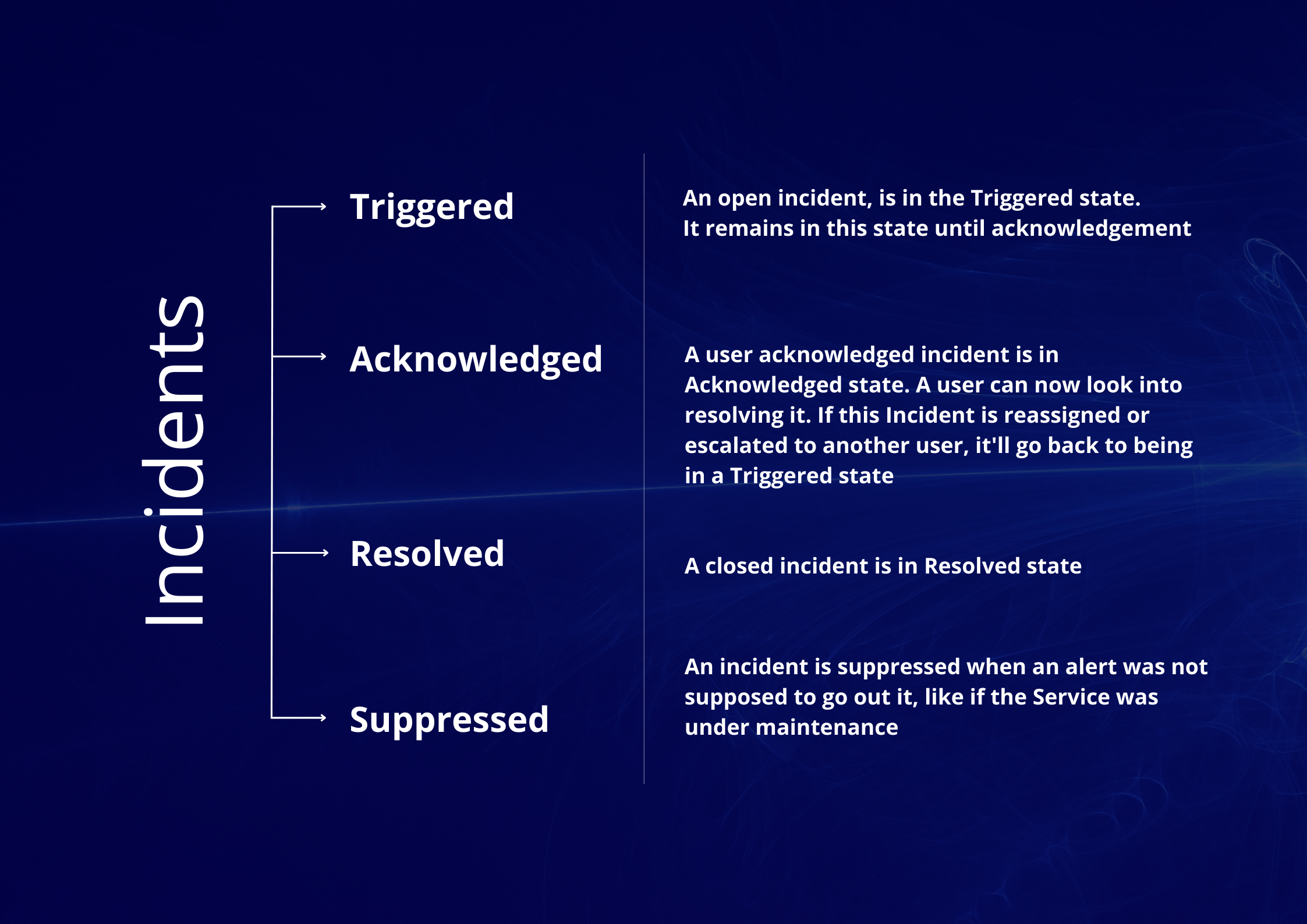 |
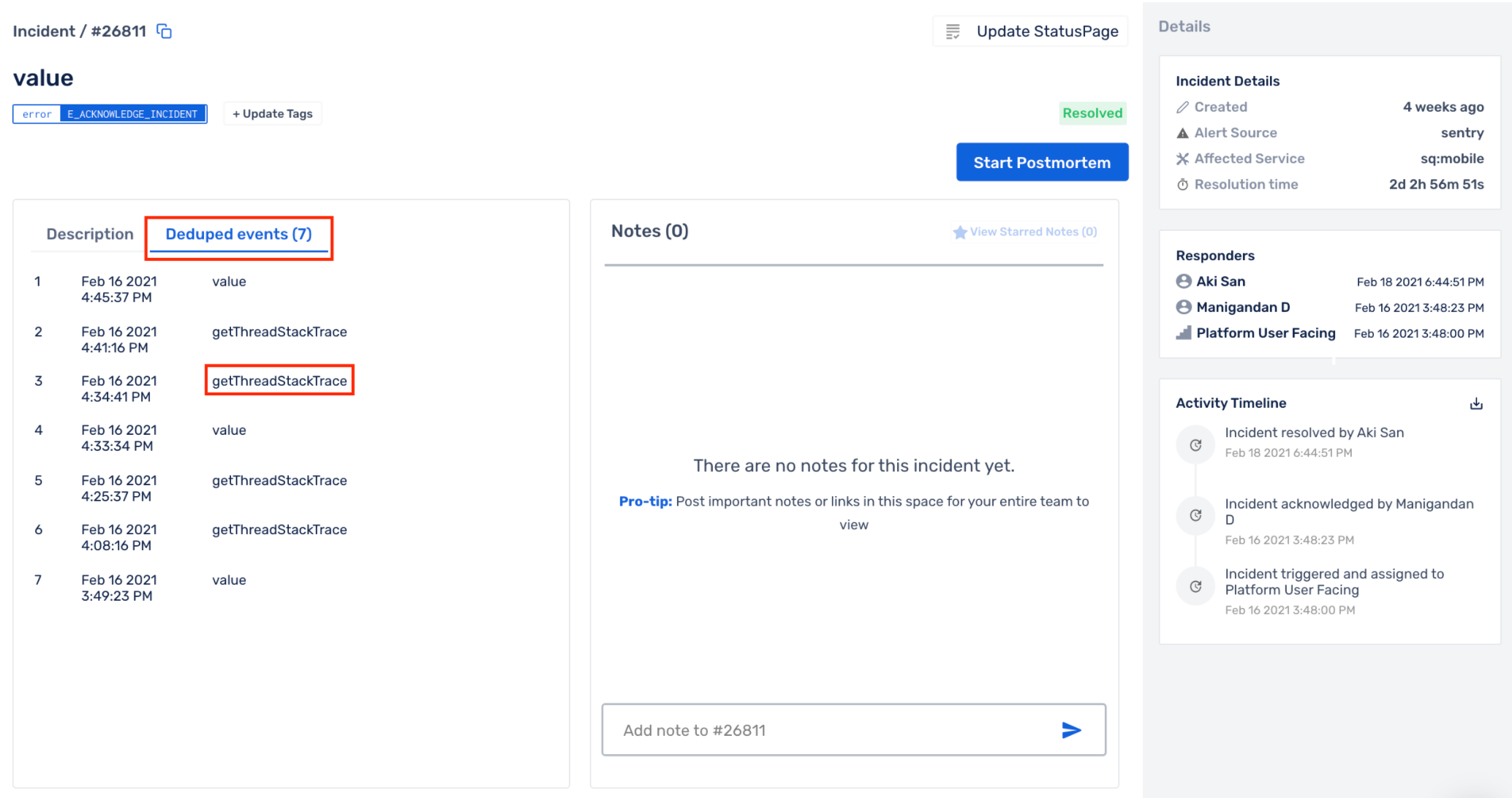
| Deduped Events |
If the incident has deduplicated events, they will be listed under Deduped events. By clicking on Deduped events, you will be able to see the following:
Clicking on any of the deduplicated events will display all the information that is sent for that alert from the monitoring tool, including the Deduplication Reason (which Deduplication Rule got executed). |
| View Payload |
To view your latest incoming payload.
Note: The search option under payload is not a free search, we have to search by JSON format, for example, type in payload.annotations to get annotations.
|


Understanding Resolution Reason
This feature will be available for organisations in the Premium and Enterprise pricing plan.
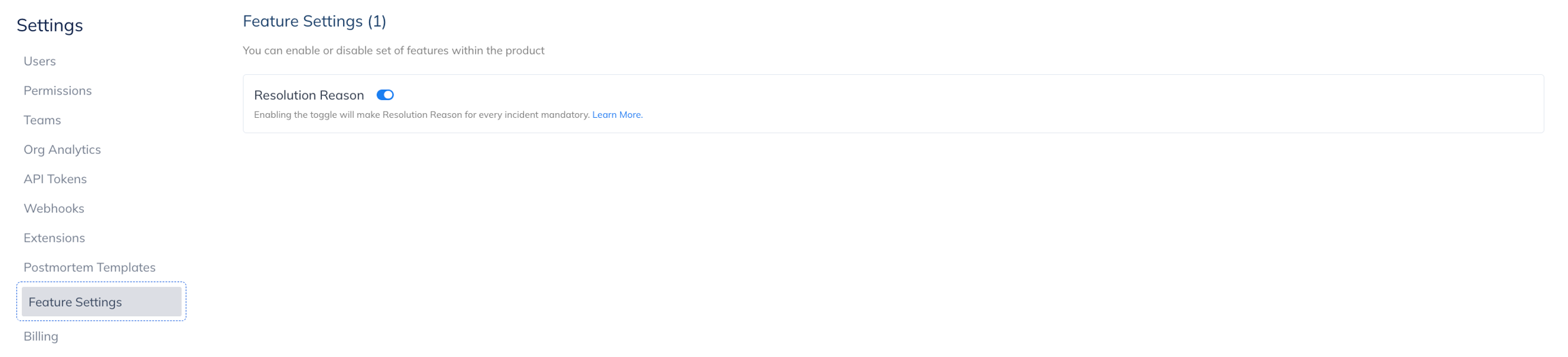
Enabling Resolution Reason requirement for incident resolution in an organisation would be the first step before users can start adding reasons before resolving incidents on a mandatory basis.
Navigate to Settings > Feature Settings > Enable / Disable Resolution Reason
-
Enabling Resolution Reason would make it mandatory in order to resolve an incident
-
Disabling Resolution Reason would make it optional in order to resolve an incident
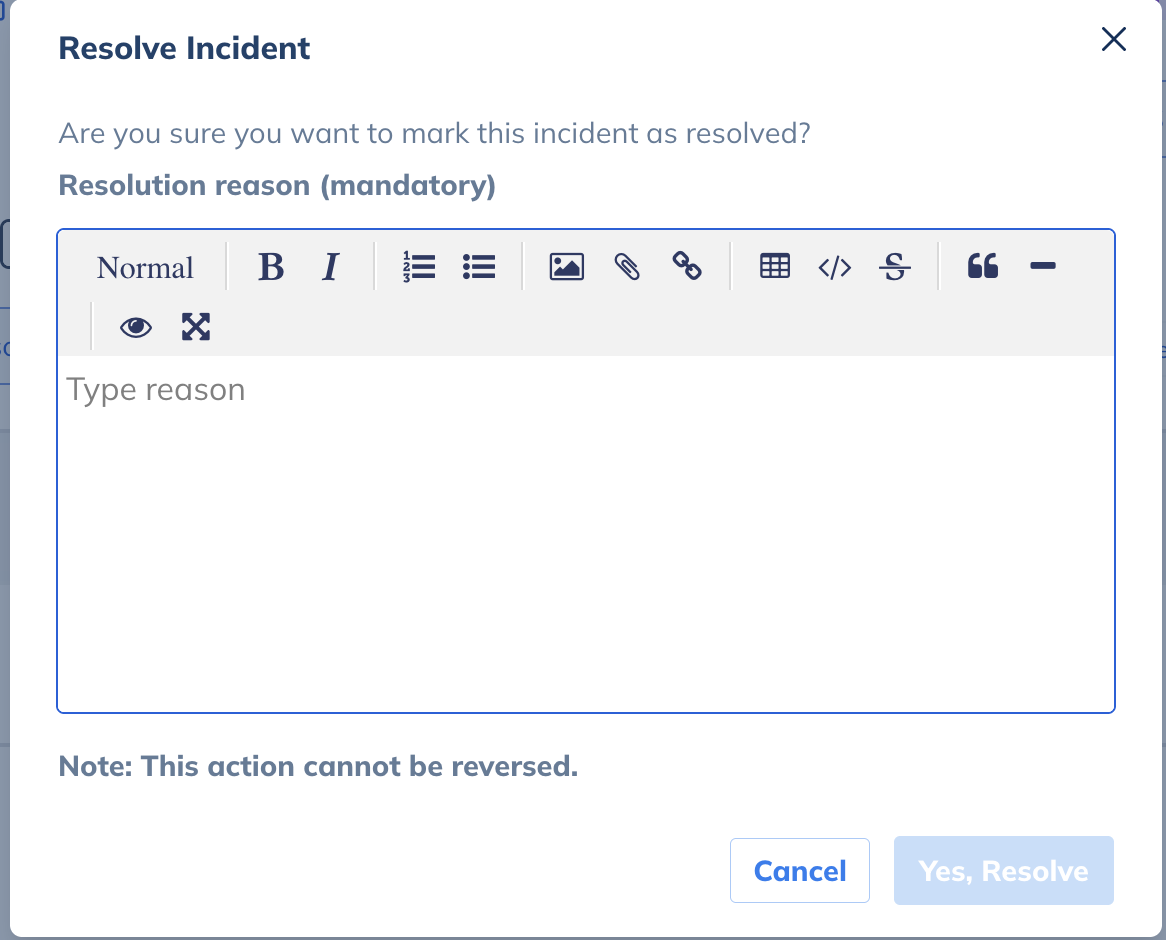
Entering reason for resolution while resolving an incident would essentially be a modal like below.

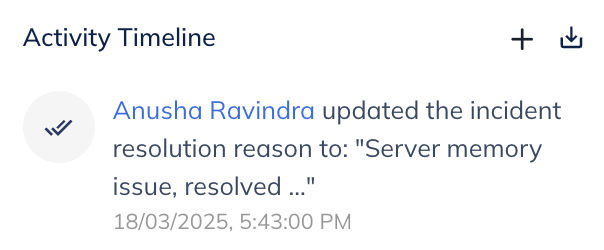
Once resolution reason is added for an incident, it appears in two places.
-
In the Notes section, as a pinned Note
-
In the Activity Timeline along with the resolution log
For auto-resolved incidents, the resolution reason would automatically get added as:
Incident marked as Automatically Resolved by <alert source name>.
Incident Details Field Limitations
There are certain character limitations for the Incident Message and Incident Description fields. The same is indicated below.
| Incident Field | Character Limit |
|---|---|
| Incident Message | 250 |
| Incident Description | 15000 |