
Set up Active Directory authentication in SEM
Set up Active Directory authentication to allow users to log in to SEM with their Active Directory (AD) credentials.
This task configures SEM for Active Directory authentication. See Configure Active Directory and SEM to work with SEM rules and filters to configure SEM to monitor Active Directory accounts for security violations.
Gather required information
Before you begin, gather the following:
- Either the IP address or fully-qualified domain name (FQDN) of the Active Directory server.
- The domain credentials for an account that SEM can use to log in to Active Directory. SolarWinds recommends using a service account with a non-expiring password. This account does not need elevated privileges.
- Confirmation that LDAPS (LDAP over SSL, typically port 636) is enabled on the Active Directory server. SEM 2026.4 and later do not support non-encrypted LDAP connections.
To get directory server details, open a Windows command prompt on a computer on the correct network and type nslookup.
Create a user in Active Directory that SEM can use to log in
- Log in to the domain controller and open Active Directory Users and Computers.
- Create a user account that SEM can use to log in to Active Directory. SolarWinds recommends using a service account with a non-expiring password. This account does not need elevated privileges (such as Domain Admin privileges).
Create custom security groups in Active Directory for SEM to use
User access in SEM is based on Active Directory group membership.
If you are using your existing Active Directory groups for alerts, reports, and so on, skip this section and go to Configure or view Active Directory authentication settings in SEM.
- Log in to the domain controller and open Active Directory Users and Computers.
-
Create at least one security group called
ROLE_LEM_ADMINISTRATORS. Group names must be identical to the names given below, otherwise users cannot log in to the SEM console. SolarWinds recommends creating SEM group names using capital letters to help you quickly identify SEM groups in Active Directory.You can add up to six of the following SEM custom groups:
ROLE_LEM_ADMINISTRATORSROLE_LEM_ALERTS_ONLYLEM_ALERTS_ONLY permissions correspond with the monitor user role.
ROLE_LEM_AUDITORROLE_LEM_GUESTSROLE_LEM_CONTACTSROLE_LEM_REPORTS
Learn more about SEM roles here.
The ROLE_LEM_CONTACTS group is only used for email notification in rules. Users added to this group do not have login rights.
Configure or view Active Directory authentication settings in SEM
In SEM, you can create multiple LDAP configurations.
In SEM 2026.4 and later, LDAP connections must use SSL encryption (LDAPS). When you upgrade, SSL encryption is turned on for all existing LDAP configurations. If you currently connect to your Active Directory server without encryption (typically on port 389), make sure LDAPS (typically port 636) is enabled and reachable on the domain controller before you upgrade, otherwise Active Directory users cannot log in to SEM.
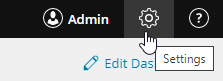
- Click the settings icon on the upper right.
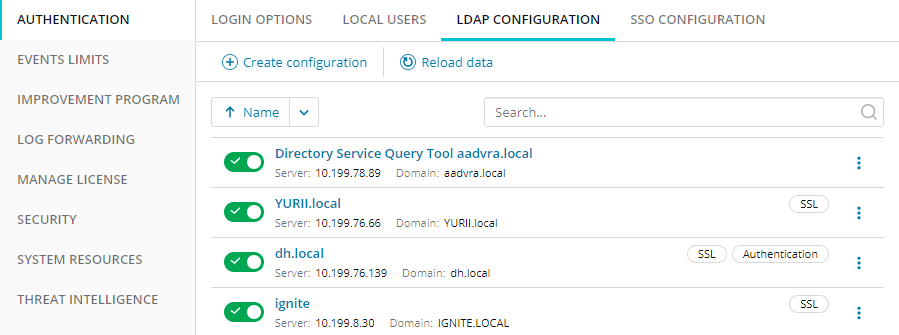
- Select Authentication > LDAP Configuration.

If any LDAP configurations have already been created these are displayed.
- Click Create configuration.
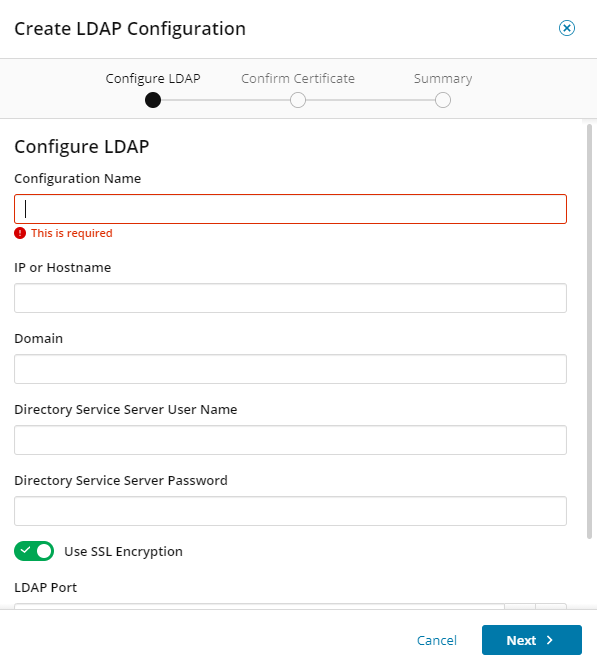
The Create LDAP Configuration dialog is displayed.
-
Enter the required information.
See the table below.
Field Description Configuration Name Enter a friendly name of your choosing for the LDAP configuration. IP or Hostname Enter the IP address or host name of your LDAP server.
Domain Enter the fully-qualified domain name for the account store. Directory Service Server User Name
Use the format account_name@example.com.
SolarWinds recommends using a Directory Service account to prevent integration issues if the software license expires. The user name does not require special privileges (such as Domain Admin) to be a Directory Service user.
Directory Service Server Password Enter the password for the user account. Use SSL Encryption SEM uses the transport layer security protocol (LDAPS) for a secure connection to the LDAP server. This option directs traffic from the SEM VM to a designated server (usually a domain controller) for use with the Directory Service tool.
In SEM 2026.4 and later, this option is selected by default and cannot be cleared. Non-encrypted LDAP connections are no longer supported.
LDAP Port The default port for LDAPS is 636. Make sure LDAPS is enabled on your LDAP server and that SEM can reach it on this port.
Use for Authentication Select, then click Next if you wish to use Advanced Settings shown below. Domain Aliases (Optional) Specify any Domain Alias names that should be authenticated using this LDAP configuration. (The role/group names configured on this page will also apply.) NetBIOS Names (Optional) Specify any NetBIOS names that should be authenticated using this LDAP configuration. (The role/group names configured on this page will also apply.) Admin Group (Optional) Specify the DS group in Active Directory to use for the SEM administrator role. If you do not specify a name, the default ROLE_LEM_ADMINISTRATORS group is used. Alerts Only Group (Optional) Specify the DS group in Active Directory to use for the SEM auditor role. If you do not specify a name, the default ROLE_LEM_AUDITOR group is used. Guest Group (Optional) Specify the DS group in Active Directory to use for the SEM guest role. If you do not specify a name, the default ROLE_LEM_GUESTS group is used. Notify Only Group (Optional) Specify the DS group in Active Directory to use for the SEM notifications role. If you do not specify a name, the default ROLE_LEM_CONTACTS group is used. Reports Group (Optional) Specify the DS group in Active Directory to use for the SEM reports role. If you do not specify a name, the default ROLE_LEM_REPORTS group is used. - Click Next.
-
The SSL certificate of the LDAP server is shown. Click I trust this certificate to confirm.
SEM trusts the root certificate authority (CA) in the certificate chain presented by the LDAP server (or the farthest CA in the chain if the root is not included), not only the server (leaf) certificate. As a result, you do not need to trust the certificate again when the LDAP server certificate is renewed by the same CA.
If you enter an IPv6 address in the IP or Hostname field, the LDAP server certificate must include that IPv6 address as a subject alternative name (SAN).
- Click Finish to create this configuration.
- Configurations can be sorted by name. For each configuration, the name, server, and domain are displayed, plus flags to show if they use SSL and/or used for Authentication.
Enable and disable LDAP configurations
Configurations are enabled as soon as they are created.
Use the toggles to disable or enable individual LDAP configurations.
A warning message displays if you disable a configuration informing you that users will be unable to log on from that domain and any logged-in users from that domain will be immediately logged out.
Edit or delete an LDAP configuration
- To edit or delete an LDAP configuration, click on the vertical ellipsis icon after the configuration.

-
Click Edit to display the Configure LDAP details for this configuration (which can now be edited and saved).
Click Delete to remove this configuration.
Add an Active Directory user to SEM
To grant a user access to SEM, add the user to the appropriate role (security group) in Active Directory.
SEM does not support nested Active Directory groups.
- Open Active Directory Users and Computers.
- Add the user to the appropriate role (security group) in Active Directory.
Users added to the
ROLE_LEM_CONTACTSgroup do not have sufficient privileges to log in to SEM. - Add the user to an Active Directory security group that is configured for use with SEM. To see which groups are configured for SEM, open the LDAP Configuration Management page and expand the list under Advanced Settings. See Configure or View Active Directory settings in SEM for details.
When configuring user accounts, make sure the user's Primary group is not assigned to a custom group, otherwise the user cannot log in to SEM. The user will see an Invalid username and password message instead, and a message like the following will be logged:
[SemSpringSecurityAuthManager] {http-nio-8080-exec-1:349} Authentication failed: User is not member of any required role group!