Okta SSO Integration
Incident Response supports SAML 2.0-based Okta Single Sign-On (SSO) login and you can set it for your organisation by following this integration guide.
Pre-requisites
-
Valid Okta SSO account & subscription
-
Account Owner / Administrator account in Incident Response
Points to Note:
-
Only an Administrator / Account owner can enable and configure Okta SSO for an organisation in Incident Response.
-
Once enabled, only the Account owner can use email-password-based login by default although it can be configured to enable email-based login for Administrators as well.
Check out this documentation to log in to your Incident Response Mobile application.
Setting up Okta SSO
-
Login to
app.squadcast.comand navigate to the Settings > Extensions. Click the Configure button under SSO. -
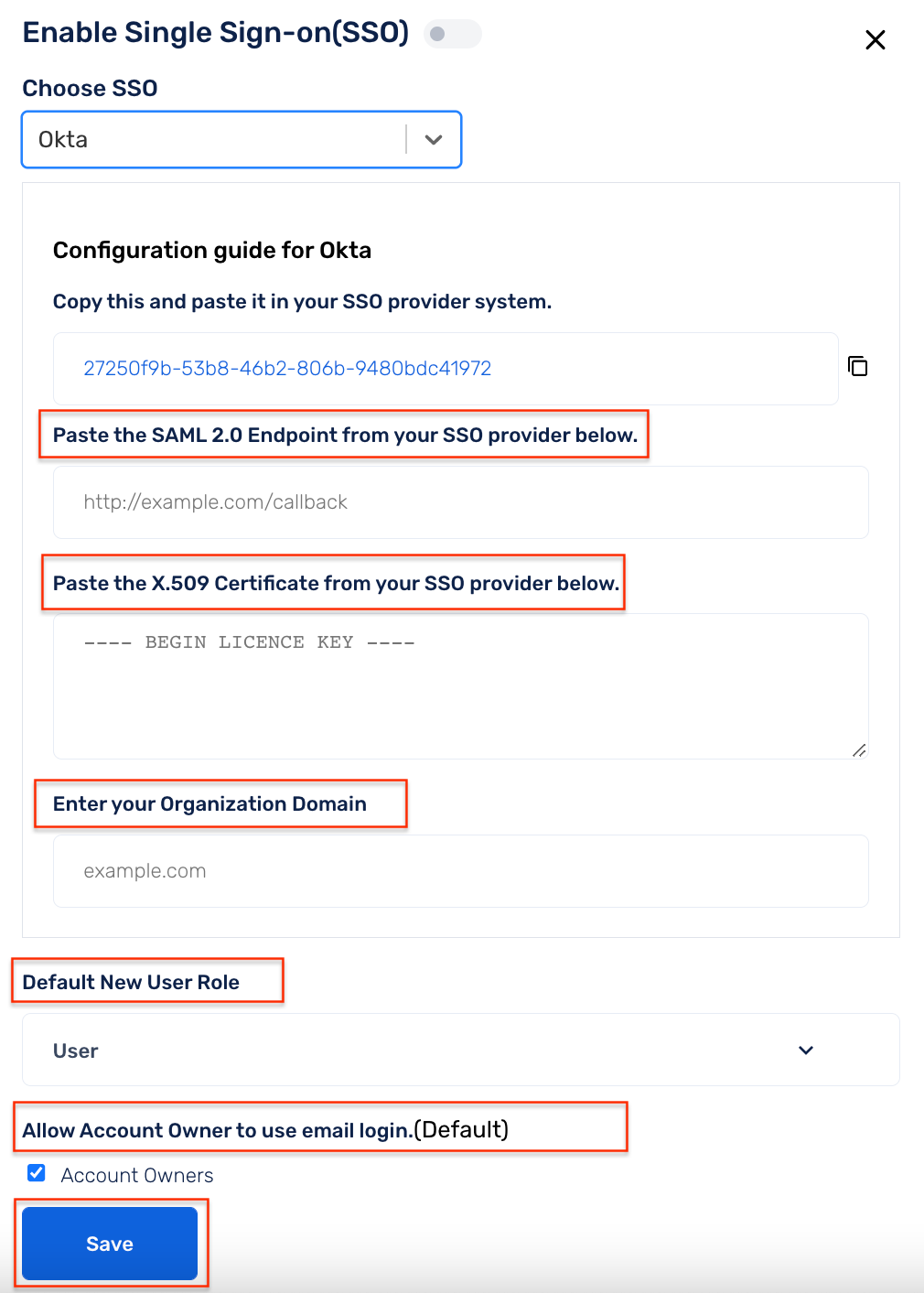
In the opened modal, select the Okta tab and click Show configuration guide for Okta.
-
Copy the ID highlighted in the instructions.
-
Move to your Okta Dashboard and navigate to Applications
-
Search for the Incident Response application and click Add to add it to your Okta account.
-
Under the
Sign-Ontab, navigate to theAdvanced Sign-On Settingsand paste the Customer ID that was copied in Step 3 in theCustomer IDfield. -
Now click on
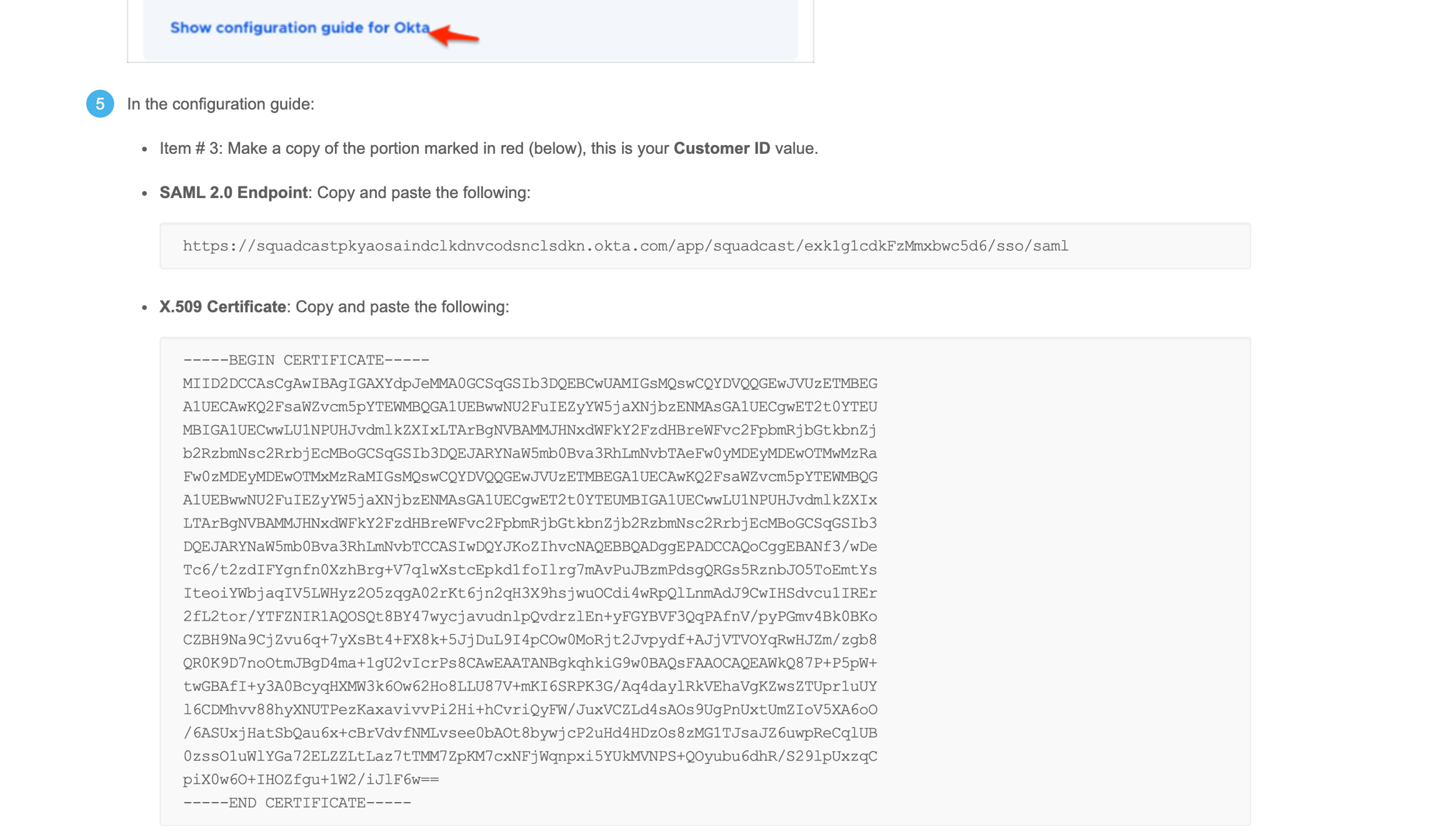
View Setup Instructionsto view the SAML 2.0 Endpoint and X.509 Certificate. -
Paste the SAML 2.0 Endpoint and X.509 Certificates in the respective fields in Incident Response


Make sure to add the Domain Name of your Organization, for SSO login to work

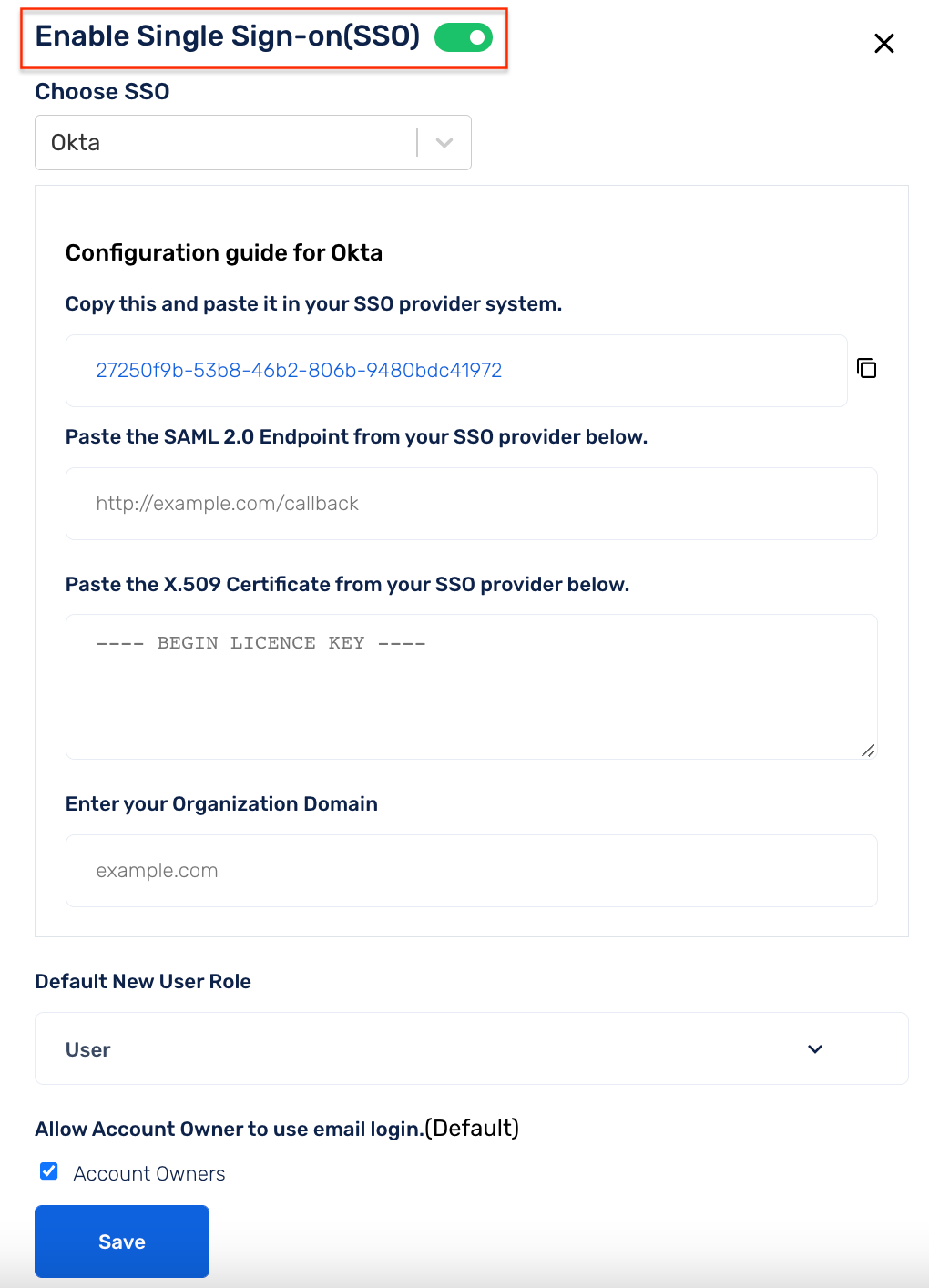
In Incident Response, enable the toggle above within the modal and click on
Saveto enable Okta SSO for your Incident Response Account.
You can turn On / Off Okta SSO by toggling the button at the top. Configure other options like the default User role and click Save.
Members trying to log into Incident Response through SSO who aren't already added to the Incident Response platform will be added to the platform by default as Users.
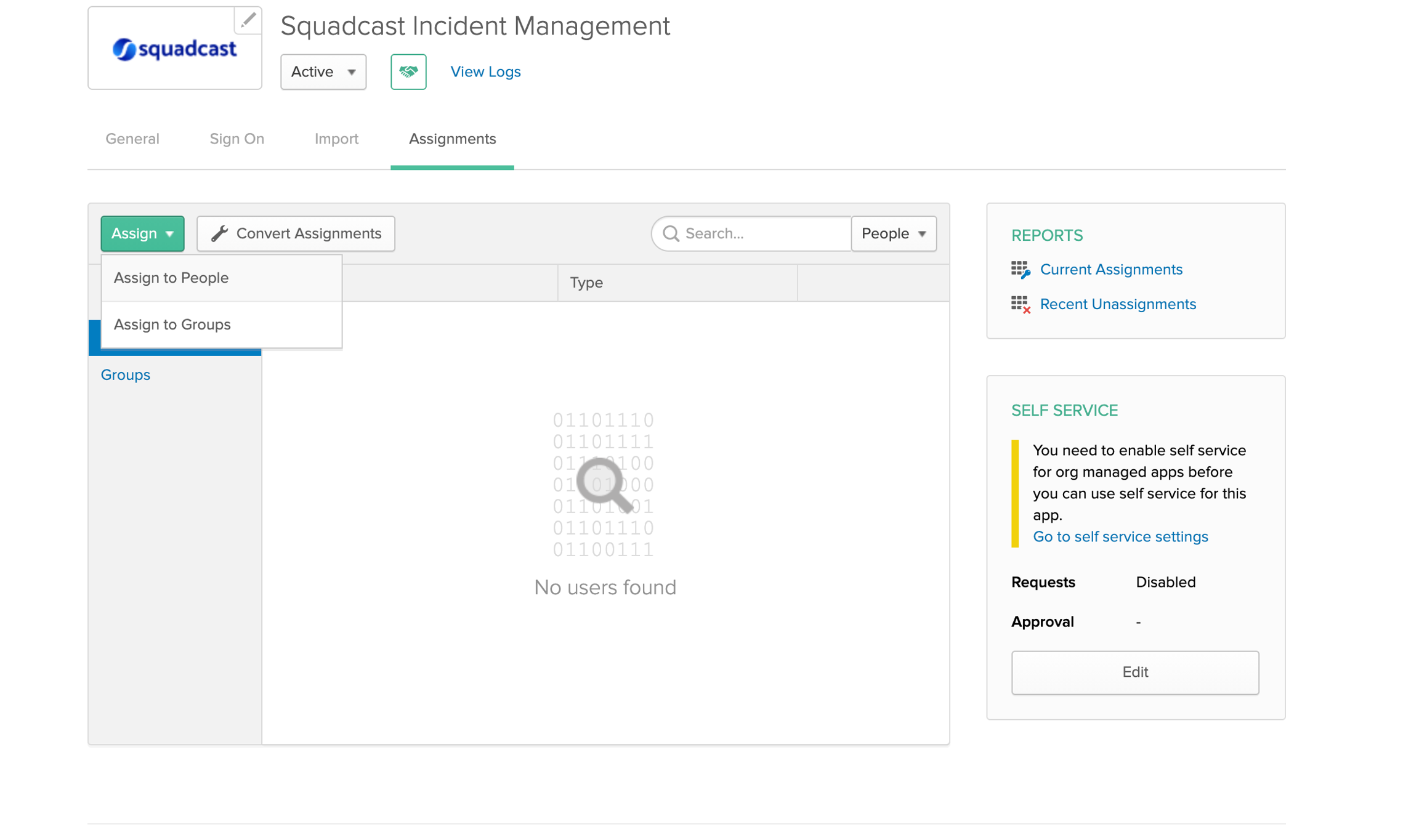
The Okta-Incident Response integration also supports user provisioning. To enable that, you can navigate to the
Assignmentstab, and assign this topeopleorgroups(based on your requirement) to enable access to Incident Response.By default, the SSO provider will send Firstname, Lastname and Email ID to Incident Response. If you can send an optional custom key called
rolewith one of these valuesAdmin,UserandStakeholder, the user will be created with these roles instead of the default user role configured in the SSO modal in Incident Response.
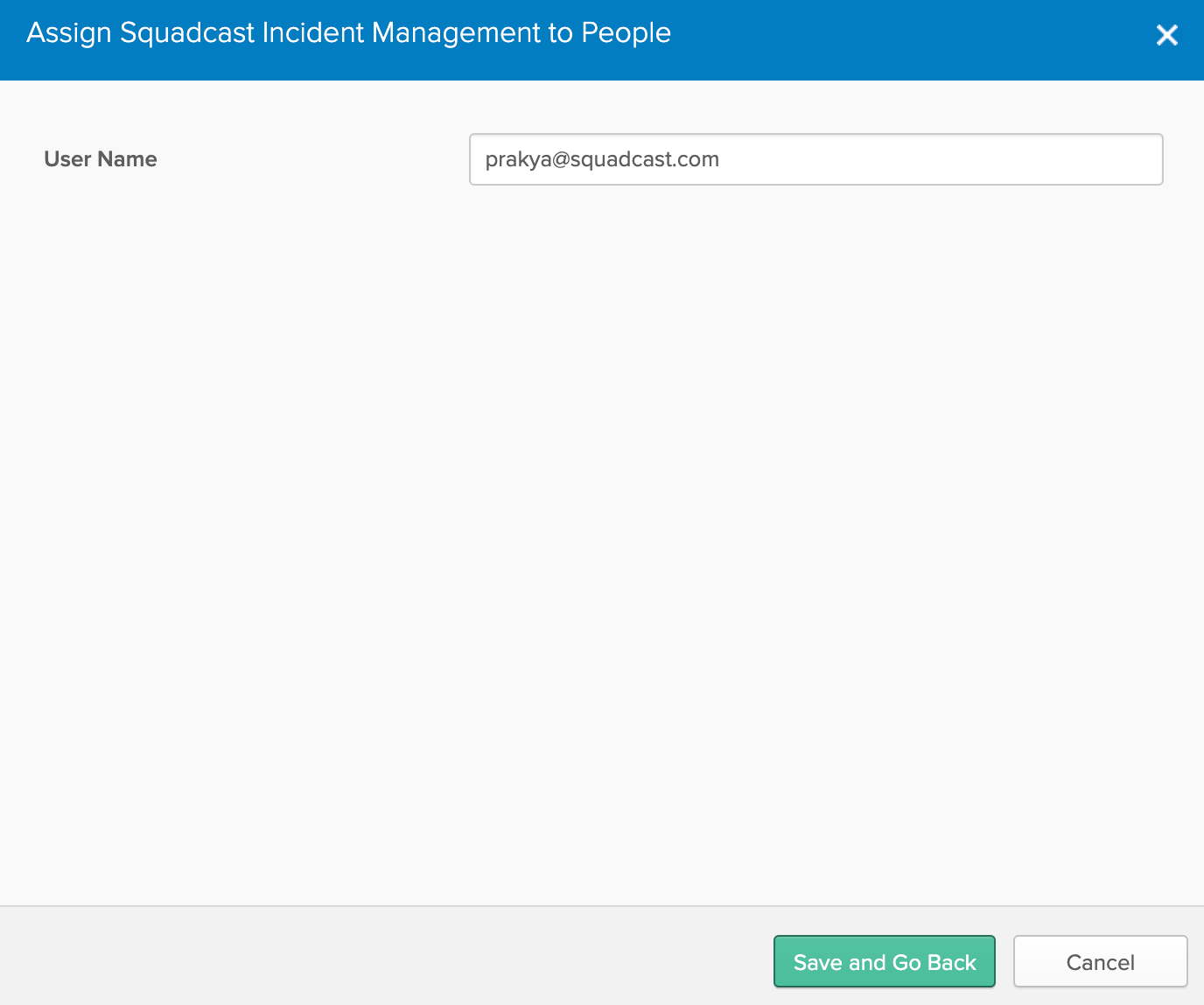
In this example, we have chosen Assign to People and added a user as shown below.
Your Okta SSO Integration is good to go and anyone in your organisation can now use Okta SSO to login into Incident Response.
Logging into Incident Response via Okta
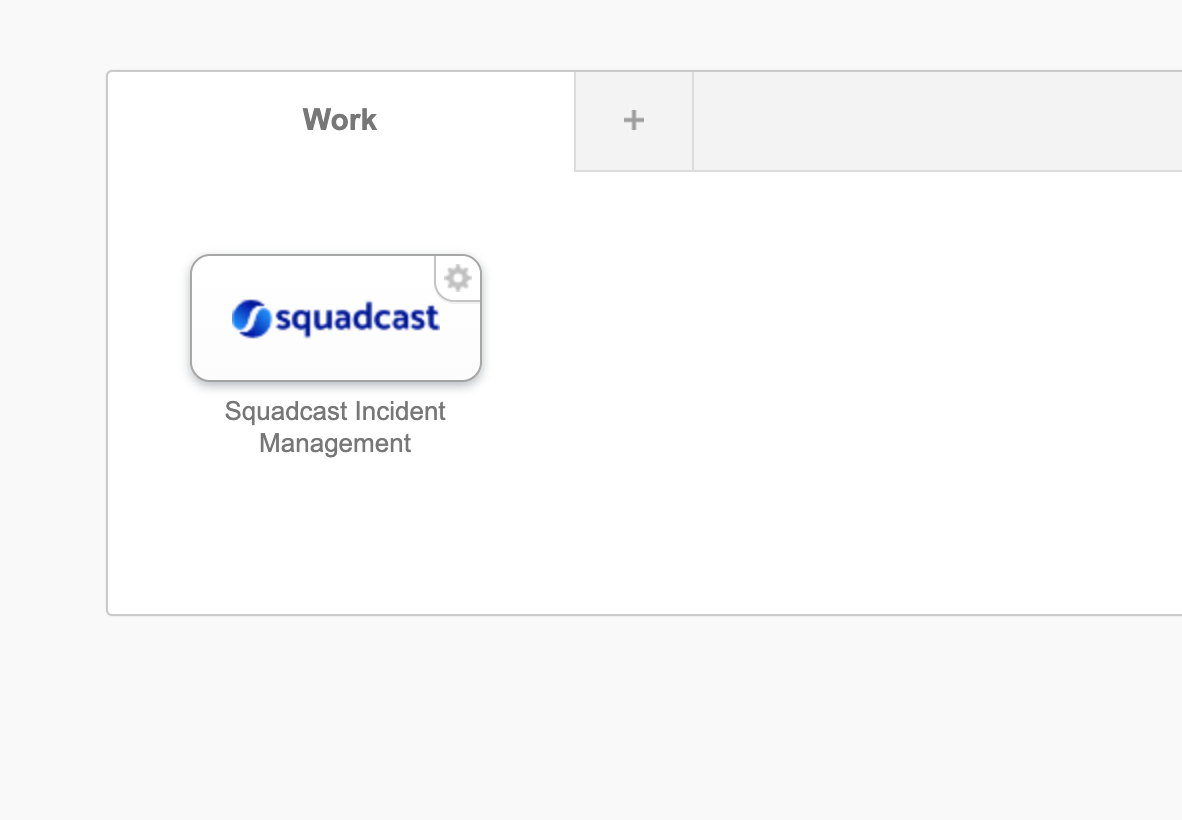
You can log in to Incident Response by navigating to
My Appsin your Okta Dashboard.Find
Squadcastin this list of saved applications and just click on theSquadcastcard and you will be automatically directed to your Incident Response account.