
Service Graph
The Service Graph in Incident Response is an interactive map showcasing the dependencies among your services. This visual representation provides a quick overview of service health and interconnections.
During incident response, leverage the Service Graph to understand the full impact of an issue, identify the probable cause, and enhance cross-team collaboration.

This feature will be available in the Premium and Enterprise plans only.
View Service Graph
To view the service graph, Navigate to Services -> Graph.
The graph only displays services that have one or more dependency relationships. Any services that do not yet have dependency relationships will be listed in the right panel under Independent Services. You can click on the services to view more details about them.

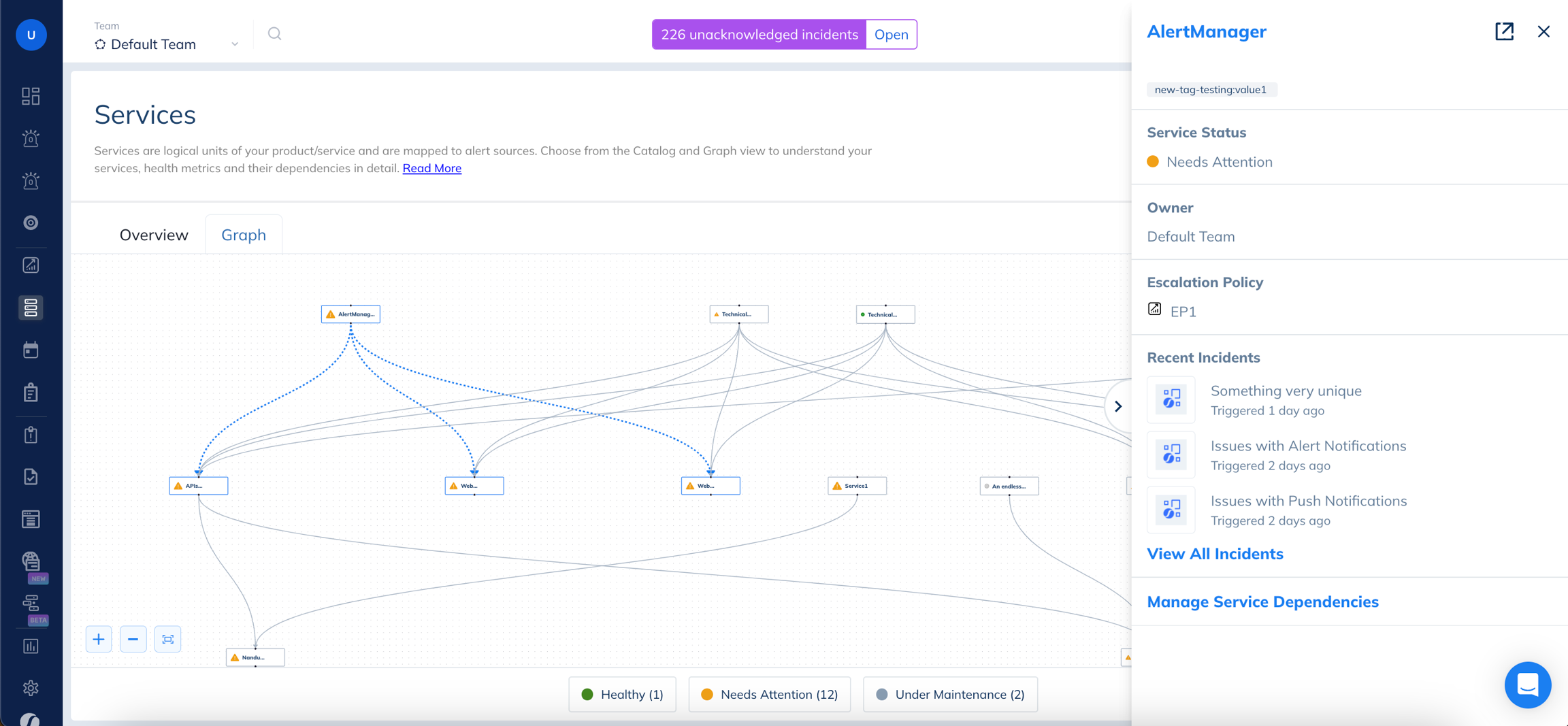
Service Graph Actions
This graph is auto-generated by Incident Response based on the service dependencies you create.
Users can zoom in and out, fit to the screen to view the graph.
User can interact with the elements of the graph by dragging the components to better visualize it as per their needs and they can further lock this created view.
Users can select to view the right panel for the displayed services.
Any interaction done on this graph is retained for the current session only. If you navigate to a different page or close the application, the service nodes move to the default graph position.
Filters
To focus on services with a specific status, users can leverage the filters on the bottom menu. Clicking on a status will highlight all the services in that state.
Right Panel
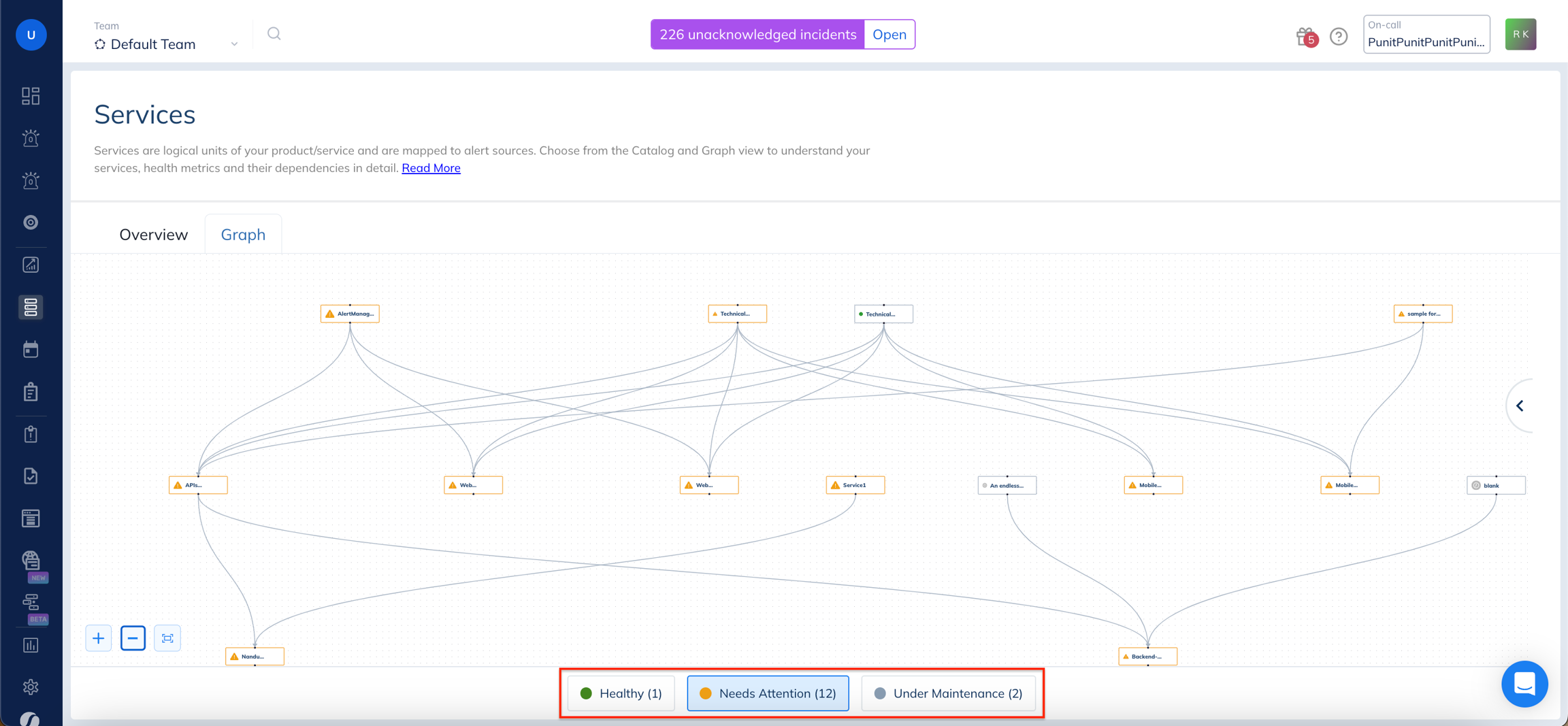
To open the right panel, click on the < icon located on the right side of the page. This panel provides a comprehensive list of both dependent and independent services. Selecting any service from the list will reveal additional information about that particular service.
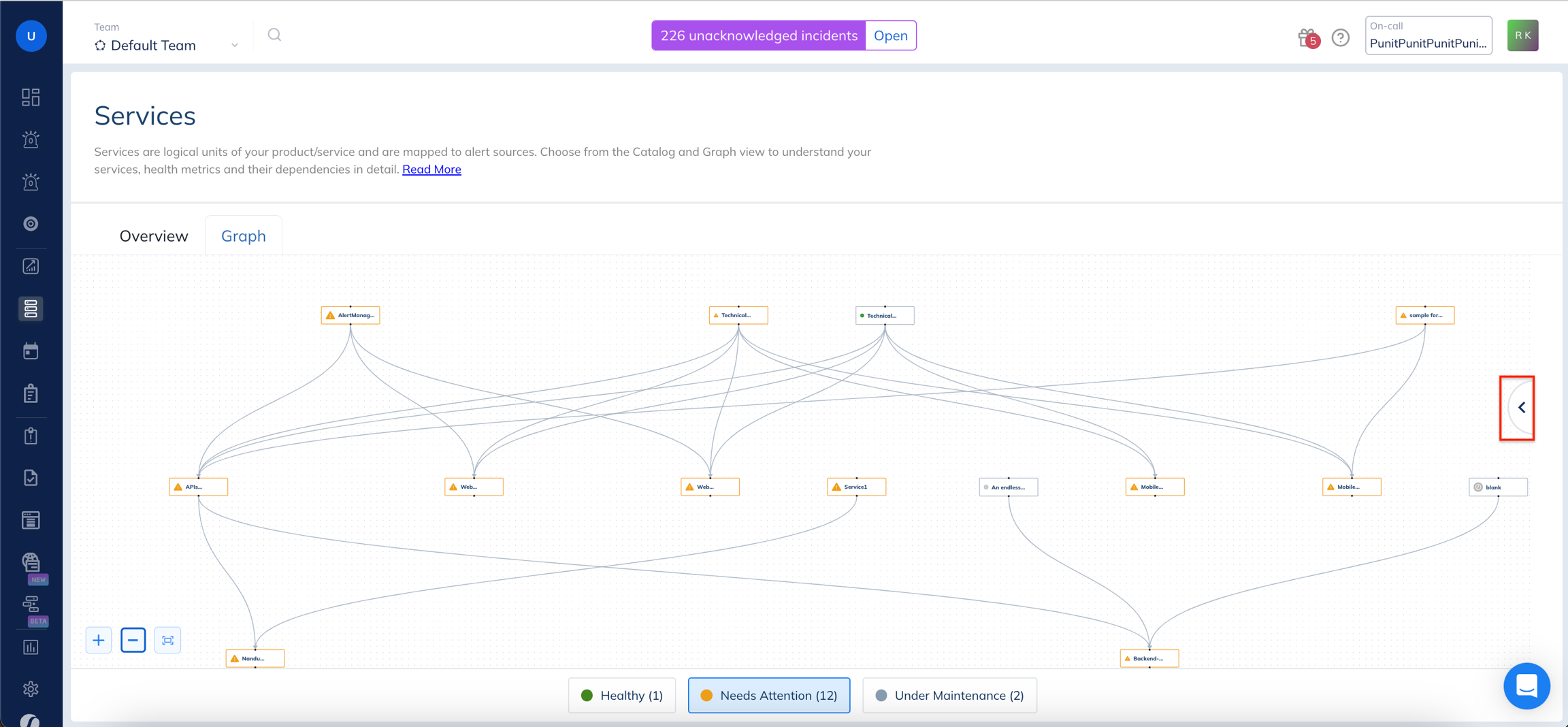
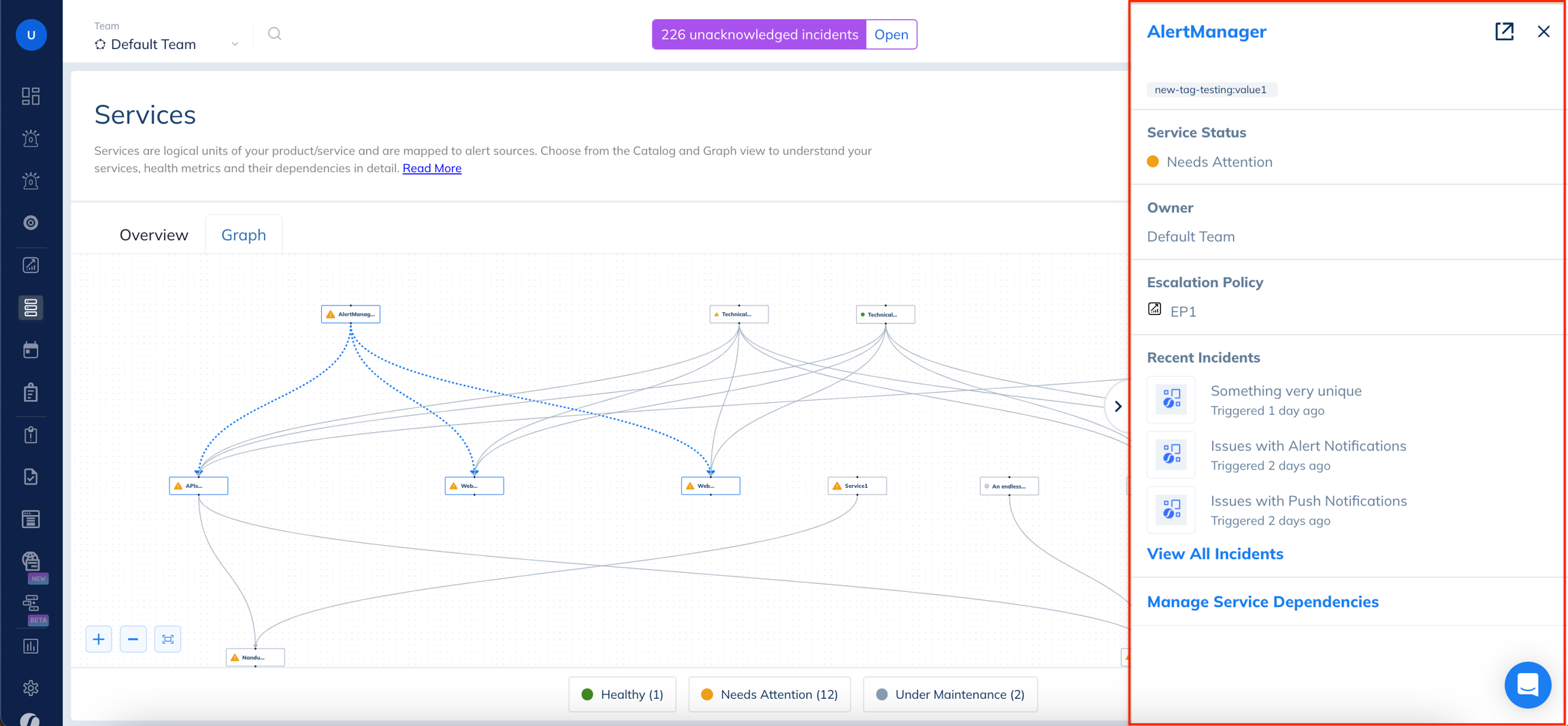
The information displayed in the right panel includes:
| Field | Description |
|---|---|
| Service Name | Name of the Service. |
| Status |
|
| Owner | Shows the user or squad that is the owner of the service. |
| Escalation Policy | Shows the escalation policy attached to the service. |
| Recent Incidents | Shows up to three most recent incidents that have come in for the service. To view all open incidents for the affected service, you can use the navigation under the list. |
| Manage Service Dependencies | A navigation link to manage dependencies on the service detail page. |