
Incident Response Search
Basic commands
Search requires some basic commands to work with.
-
Once in search, autocompletes can be provided with
Tab -
Use
CTRL + SPACEto view autocomplete -
Access search helps within search by typing in
?: -
To execute a command use
CMD + ENTERfor Mac andCTRL + ENTERfor Windows

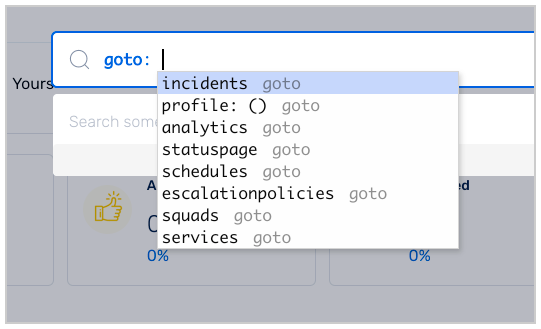
goto
goto enables instant navigation when used along with profile.
-
Activate the global search bar using
CMD/CTRL + SHIFT + K -
Type in
gotoand enter -
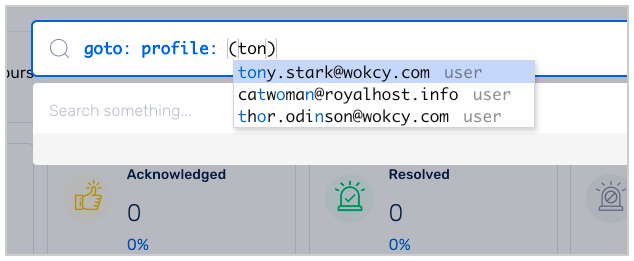
Type in
profileand then search for users by their email address -
CMD/CTRL + Return/Enterto navigate to the user’s profile

Help
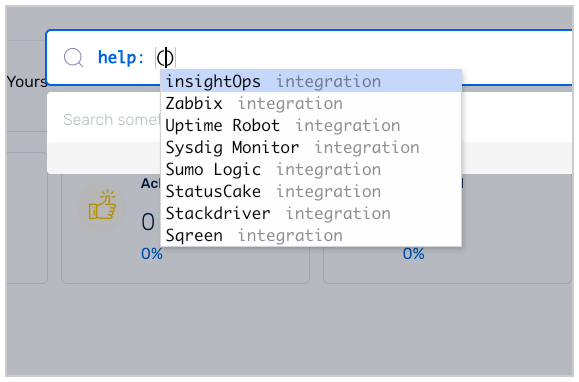
Now you can navigate to alert source integration documents directly through the search. Type in help: and then the keyword or name of the documentation you want to search for.
Search through Incidents
Search incidents with queries. We support a set of tokens to fine-tune the results. Supported tokens can be viewed in the search help by typing ?:
Search through Postmortems
Search postmortems with queries from the Global Search Bar
We support a set of tokens to fine-tune the results. Supported tokens can be viewed in the search help by typing ?:
You can search for Postmortems through Postmortem Title, Postmortem Content, Impacted Service, Created After, and Created Before.
Note: The message query
The message query looks for a string match in the Incident Title and the Postmortem Content.
Example Use Case:
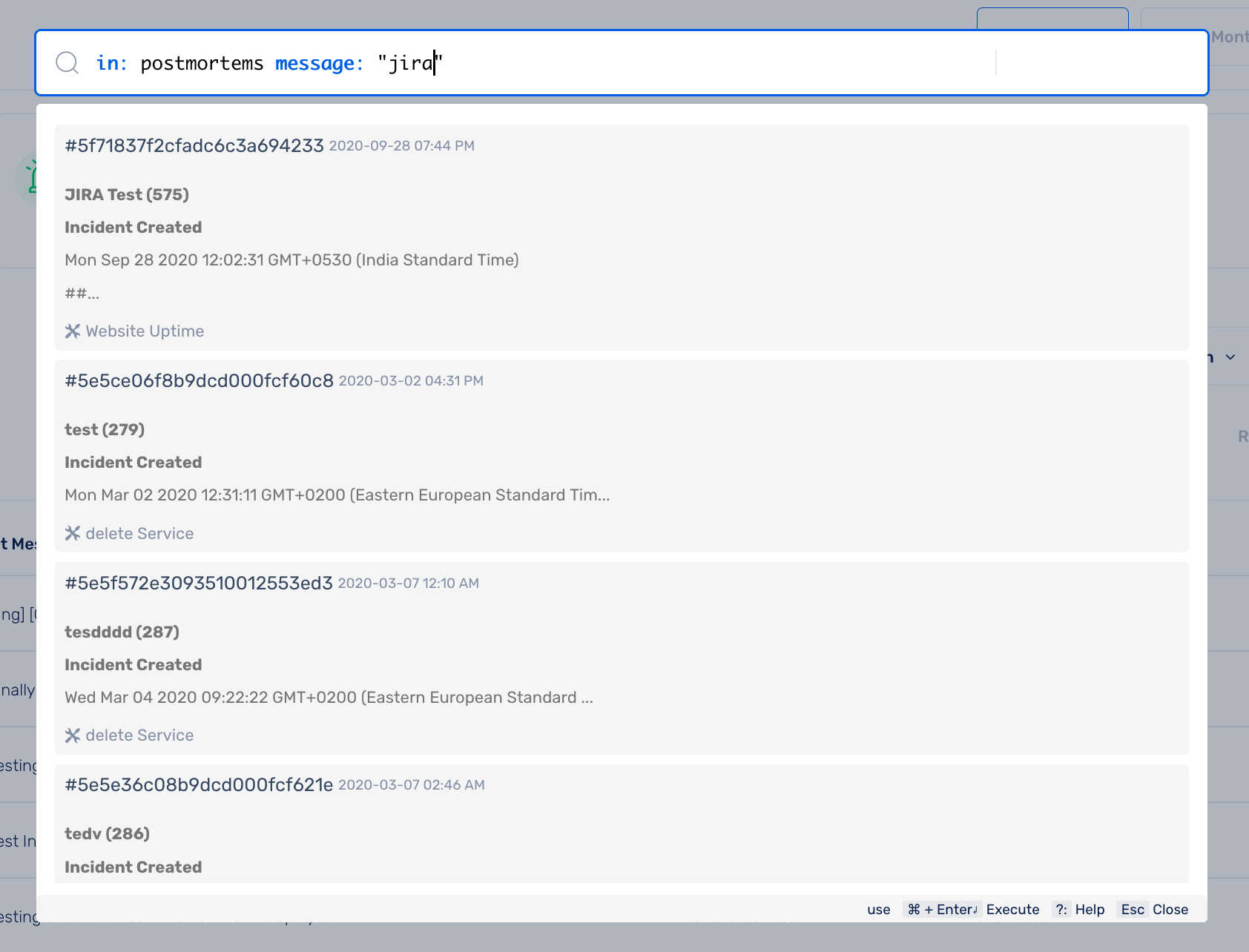
I want to look for a postmortem that contains the string JIRA in its Incident Message.
Type in
?:if you want to look up the query tokenType
in: postmortems message "jira"Hit
Command + Enter
Your search results that match this query will be populated as shown below
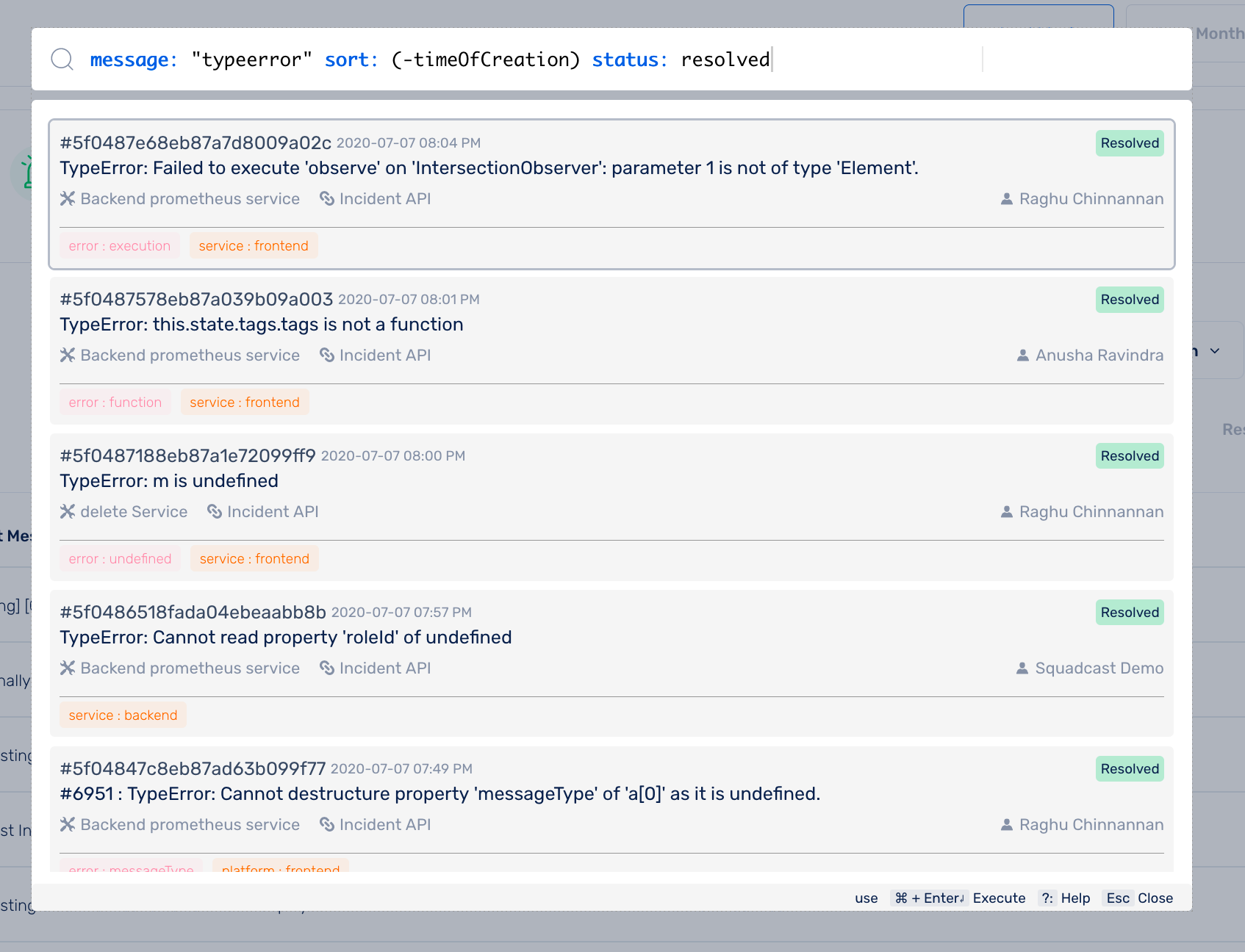
Search also provides history of queries. Search history is specific to a user with respect to the Organization.