
Microsoft Teams
We understand that most of your work happens over MS Teams. You can integrate Incident Response and MS Teams to collaborate efficiently with your team while working on incidents. Here’s a brief of all that is possible.
Prerequisites
-
Only the Account Owner and Users with the
Manage Extensionspermission will be able to enable, disable and manage Extensions in Incident Response -
Only MS Teams Admins and teams team owners can add the Incident Response-MS Teams app in their workspace
MS Teams Notifications for Incidents
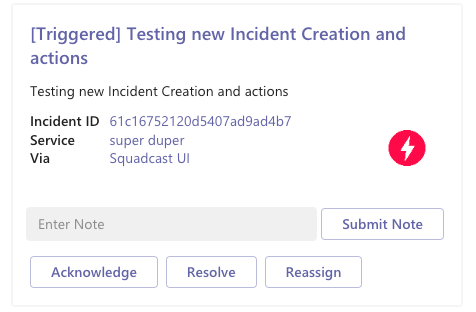
Incident Response sends a notification to the configured MS Teams channel as soon as an incident is triggered. You can easily Acknowledge, Resolve and Reassign the populated incidents from within the MS Teams channel.
The email address used with your user in MS Teams and your user in Incident Response should be the same, if not, the integration will not work as expected.
Follow the steps below to integrate Incident Response and MS Teams for US Data Center
The user can install the Incident Response application from three locations:
-
Installation from Microsoft AppSource.
-
Installation directly from the Microsoft Teams client.
-
Installation directly using the app URL here.
Installation however, is dependent on your administrator's application installation policy.
Consult with your administrator and refer to the Microsoft Teams' Application Policy for more information.
Install Incident Response from AppSource
-
Go to the Microsoft AppSource site, select the Apps option in the Search drop-down and enter Incident Response in the search field.
-
Click on the Get it now button.
-
Fill out the contact form accordingly, and proceed to app installation via the Next button. You will now be redirected to the Microsoft Teams client with the Incident Response app window open.
-
Click on the Incident Response app tile.
-
Click on the app card to open the app's configuration modal and then, click on Add to add the app
-
Once successfully added, you will receive an authorize message. Click on Authorize button to initiate the authorization flow
-
On doing so, you will be redirected to the Extensions page in Incident Response, indicating successful integration of MS Teams and Incident Response.
You can locate the Incident Response App here.


Install directly from the Microsoft Teams client
-
Navigate to the app directory and search for Incident Response from within your Microsoft Teams client.
-
Click on the Incident Response app tile.
-
Click on the app card to open the app's configuration modal and then, click on Add to add the app
-
Once successfully added, you will receive an authorize message. Click on Authorize button to initiate the authorization flow
-
On doing so, you will be redirected to the Extensions page in Incident Response, indicating successful integration of MS Teams and Incident Response.
Install directly from Incident Response App URL
-
Navigate to the App directly using the App URL here.
-
Click on the app card to open the app's configuration modal and then, click on Add to add the app
-
Once successfully added, you will receive an authorize message. Click on Authorize button to initiate the authorization flow
-
On doing so, you will be redirected to the Extensions page in Incident Response, indicating successful integration of MS Teams and Incident Response.
Follow the steps below to integrate Incident Response and MS Teams for EU Data Center
-
Download the MS Teams app bundle by clicking on this link.
-
Navigate to the Apps section
-
Click on Upload a customised app, and upload the previously downloaded app bundle by clicking on Upload for my organization
-
Once successfully uploaded, you will see the Incident Response-MS Teams app in-built for your organization
-
Click on the app card to open the app's configuration modal and then, click on Add to add the app
-
Once successfully added, you will receive an authorize message. Click on Authorize button to initiate the authorization flow
-
On doing so, you will be redirected to the Extensions page in Incident Response, indicating successful integration of MS Teams and Incident Response.
MS Teams app bundle for the EU data center: download link


Adding MS Teams Channels
-
By default, only the bot conversation will appear in the default channel
-
To add more channels, navigate to the Incident Response app in MS Teams and click on the drop-down next to the Open button to open the configuration options. Click on Add to a team
-
Select the team and a channel to add this app and click on Set up a bot
-
Once successfully added, all of these will appear in Incident Response’s MS Teams Extension configuration.


List of channels appearing in the default channel
Once the Incident Response app is added to a team in MS Teams, all the channels for that team will appear in the DEFAULT MS TEAM NOTIFICATION CHANNEL. To add more teams to Incident Response, refer step 2 & onwards.
Updating the Global MS Teams Channel for all Services in Incident Response
-
Click on the DEFAULT MS TEAM NOTIFICATION CHANNEL drop-down
-
Select the new MS Teams channel that would be the default channel for all your Incident Response Services
-
Click on Save


Now, you will start receiving alert notifications for all Incident Response incidents in the configured MS Teams channel, in this case, the internal-testing-Production-alerts channel. You can then choose to Acknowledge, Resolve and Reassign these incidents from within the channel, in this case, the internal-testing-Production-alerts channel.
This integration supports bi-directional status sync
When an incident is acknowledged, resolved or reassigned from MS Teams, the status change of the incident is propagated to Incident Response and updated automatically. Similarly, if an incident is acknowledged, resolved or reassigned in Incident Response, you will be notified in the configured MS Teams channel for it.
Note: If an incident is auto-resolved by the alert source (monitoring tool), then the notification will indicate the same.
Global MS Teams channel = default MS Teams channel for all Services
By default, the configured global MS Teams channel is applicable to every Service in Incident Response. This means, all the alerts coming for every Service in Incident Response will be routed to the default MS Teams channel configured.
Configuring Service-Specific MS Teams Channels
Additionally, you can associate one MS Teams channel per Incident Response Service so as to receive notifications for incidents affecting only that Service in this MS Teams channel.
Follow the steps below to configure the same:
-
Enable the checkbox to activate
TEAM/SERVICE SPECIFIC CHANNEL -
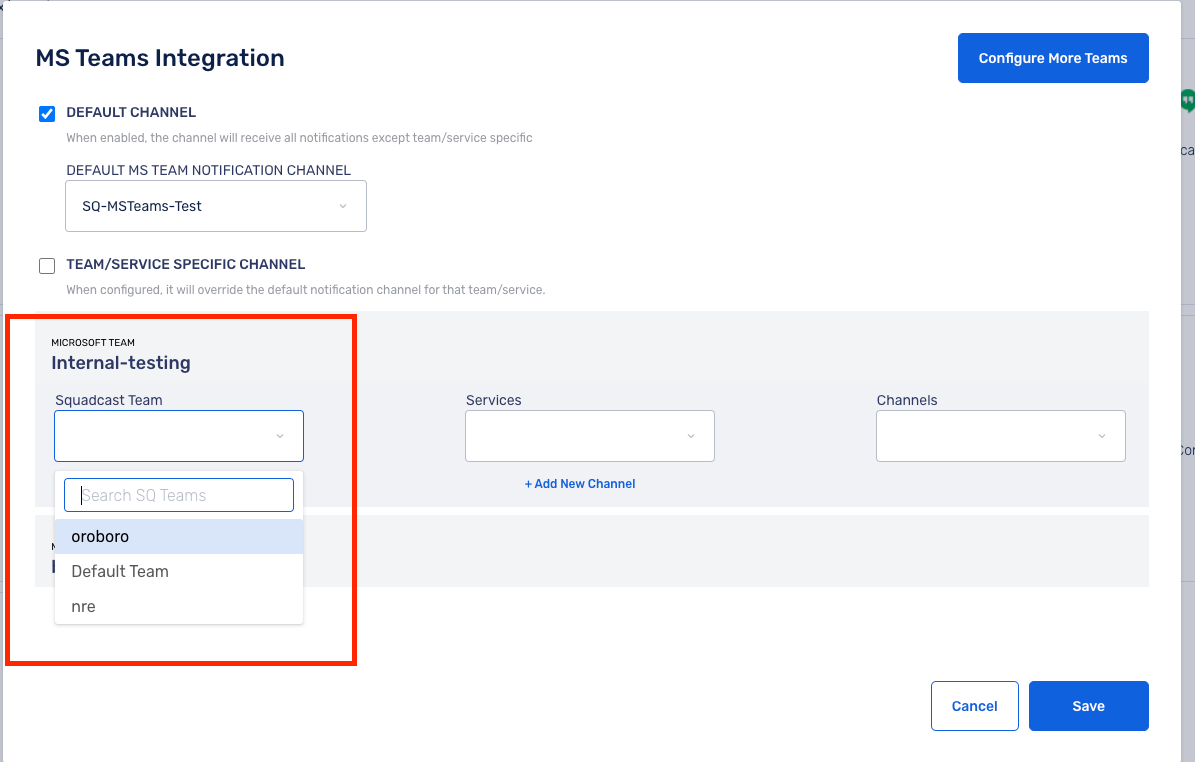
Select the Team to open the Team configuration option
-
Select the Incident Response Team here
-
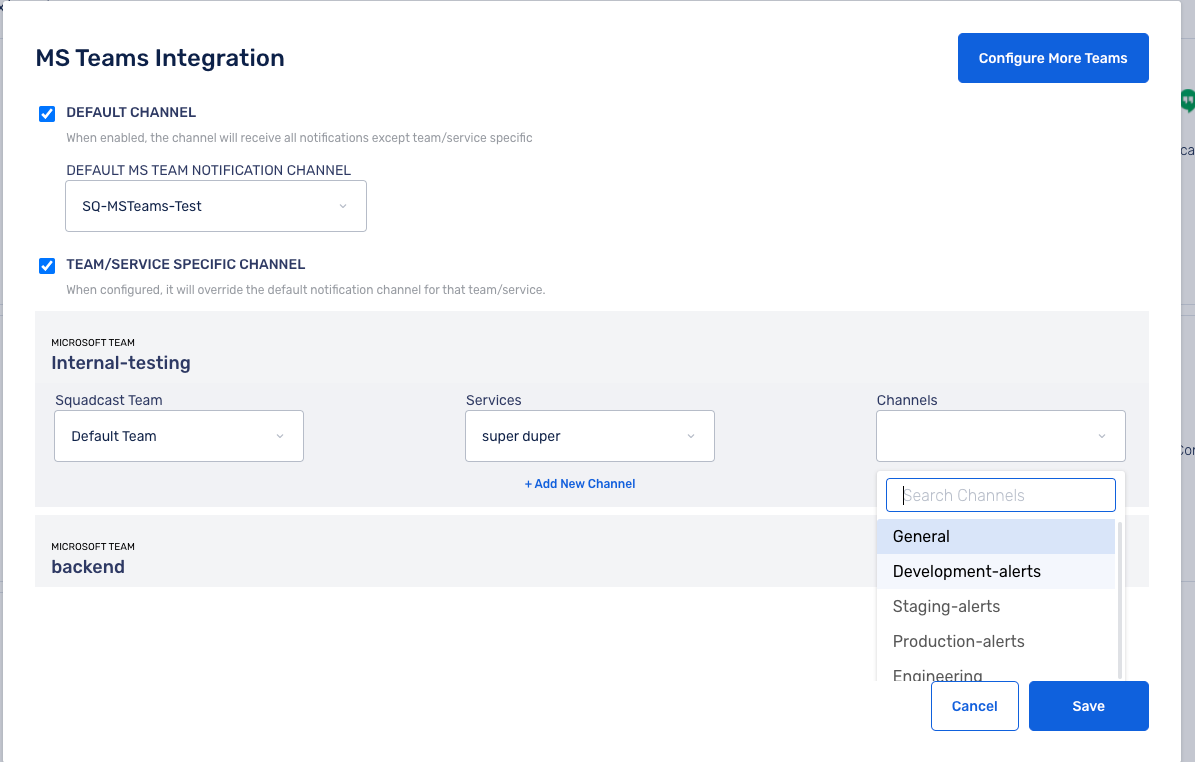
All the Services that are a part of that Incident Response Team will appear in the next Services drop-down, select the Service(s)
-
Select a channel in opened Teams so for example all the channels in the
internal-testingteam are shown and we can select a channel to create a Incident Response(Team, service) to MS Teams Channel mapping -
Click on Save to save the configuration.


Configuring to Create Microsoft Teams Meetings
You can also create Microsoft Teams meetings using the Microsoft Teams app. This extension allows you to generate meeting links both via incident communication channels (both Web and Microsoft Teams bot) and Workflow actions.
-
The meeting links can be created in the channel where the incident message was posted. If the Org only has a default channel the meeting link will be created in that channel. If the Org has a Team-specific/Service-specific channel configured, the meeting link will be created in those channels.
-
The created meeting link can be added to the communication channel of the incident.

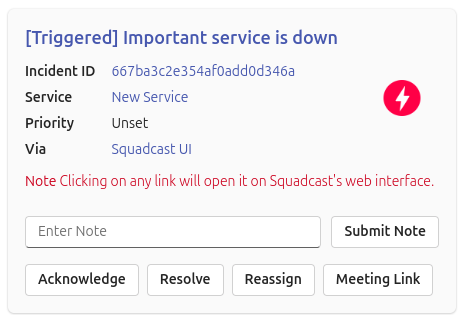
Once this feature is enabled, you have the option to create meeting links from the incident page and the Microsoft Teams bot:
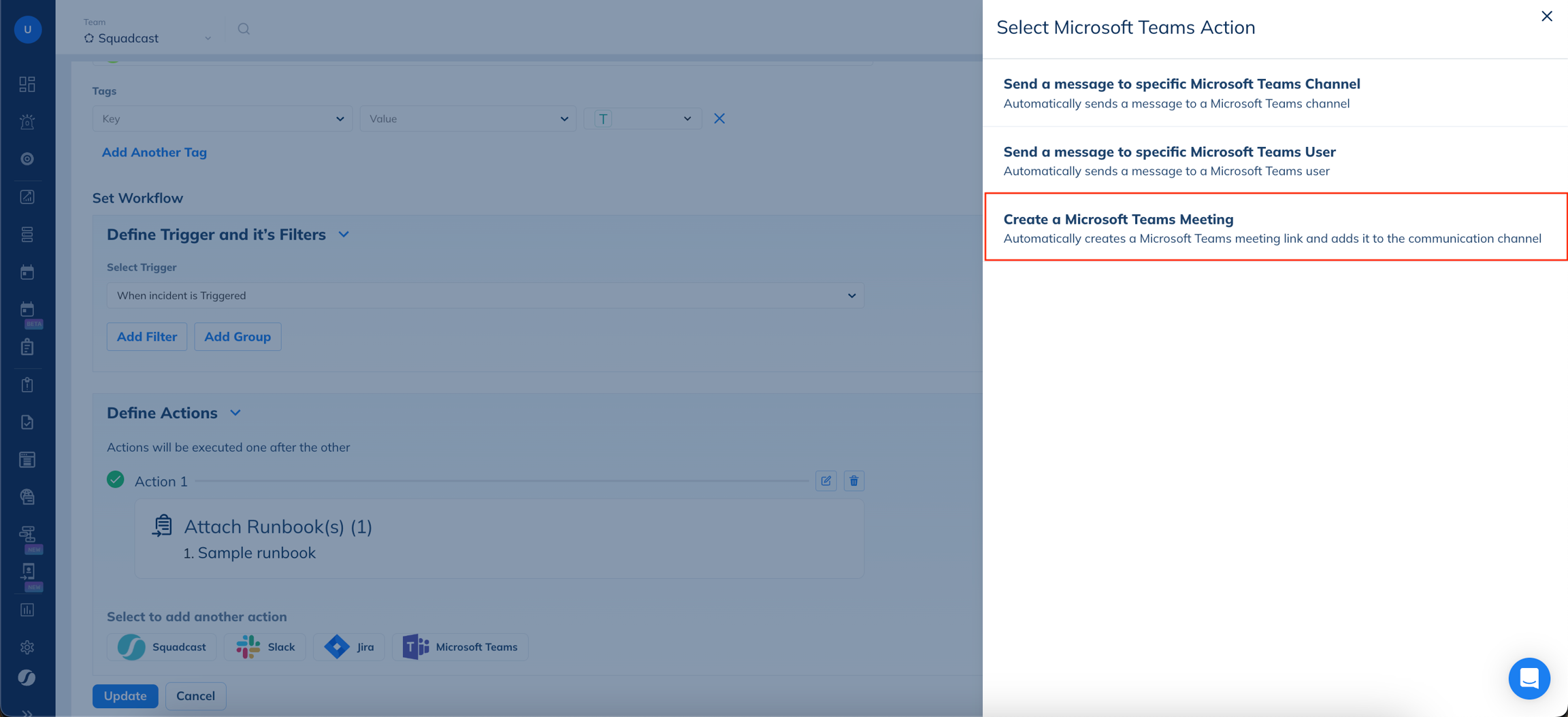
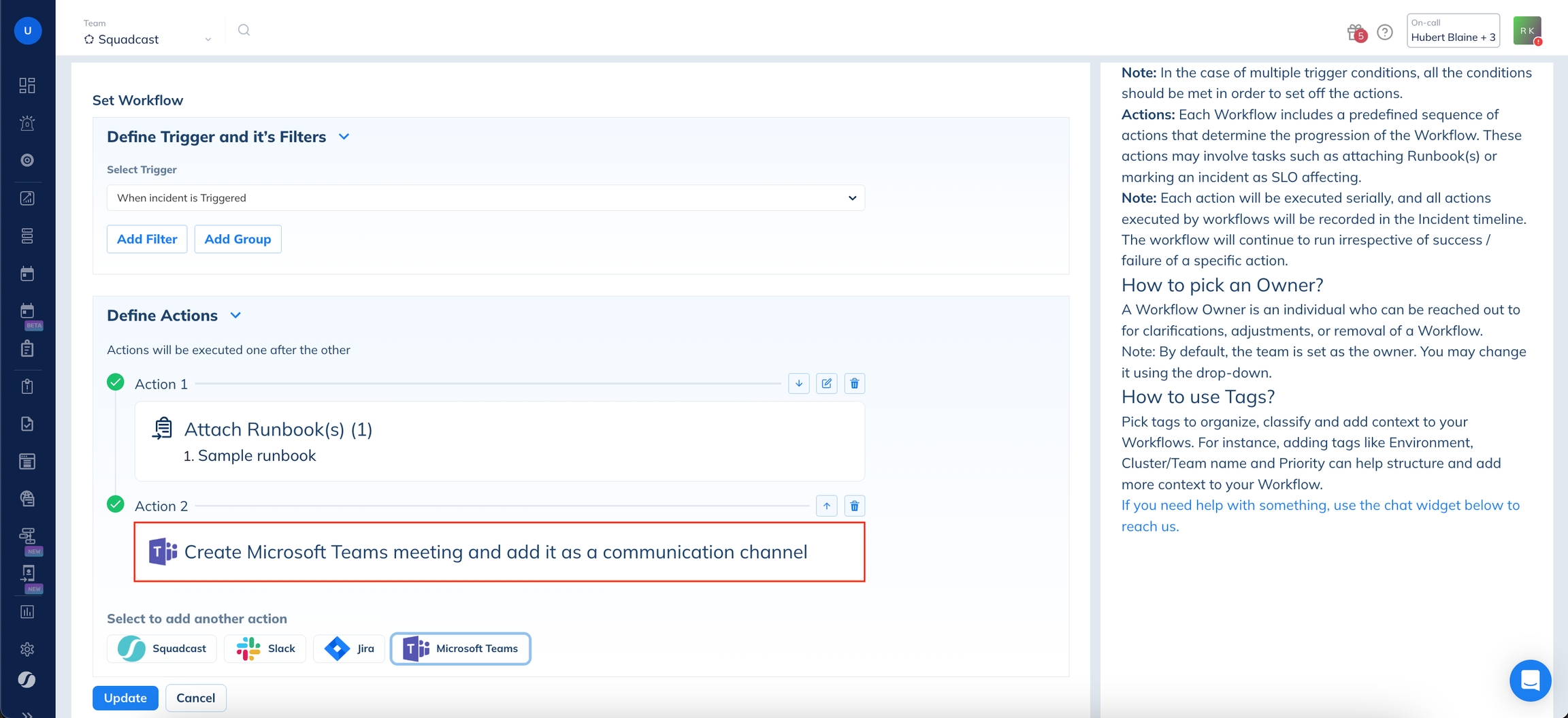
To create these meeting links automatically for incidents, users can also create a new action in Workflows. This automatically creates a meeting link and adds it to the Communication Channel.
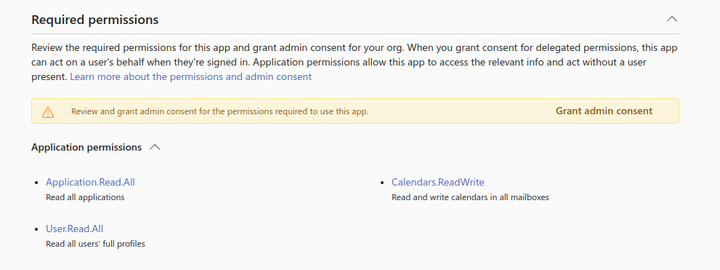
Follow the steps below to configure the same:
A. For Orgs that have not integrated the Microsoft Teams Extension:
Simply configure the extension. The user that integrated the extension will be selected by default as the meeting link user.
B. For Orgs that have already integrated the Microsoft Teams Extension:
- The user will need to grant admin consent to the Incident Response bot permissions.
- Navigate to the permissions page for the Incident Response bot in the Microsoft Teams Admin Center.
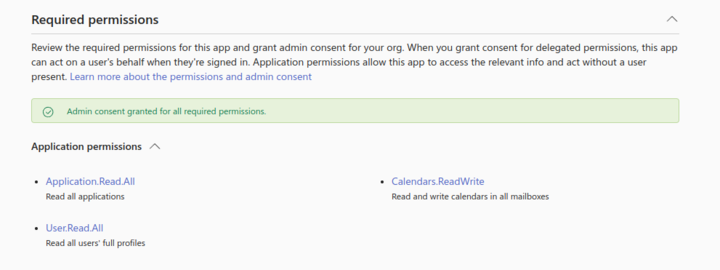
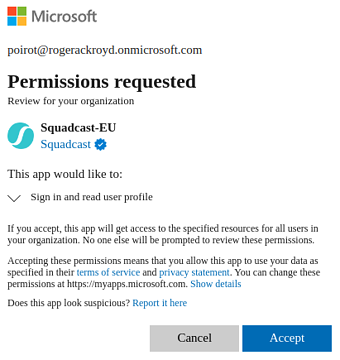
Review the required permissions and click
Grant admin consent. This will prompt you to sign in to your Microsoft account. Once you have chosen an account, you will see a page to grant permissions to the Incident Response bot.
Click
Accept. If the permissions were updated, it will sayAdmin consent granted for all required permissions.
After granting admin consent for new permissions to create Teams meeting links, there may be a delay of up to two hours before you can create the links. This delay occurs because Microsoft Teams permissions are not updated instantly.
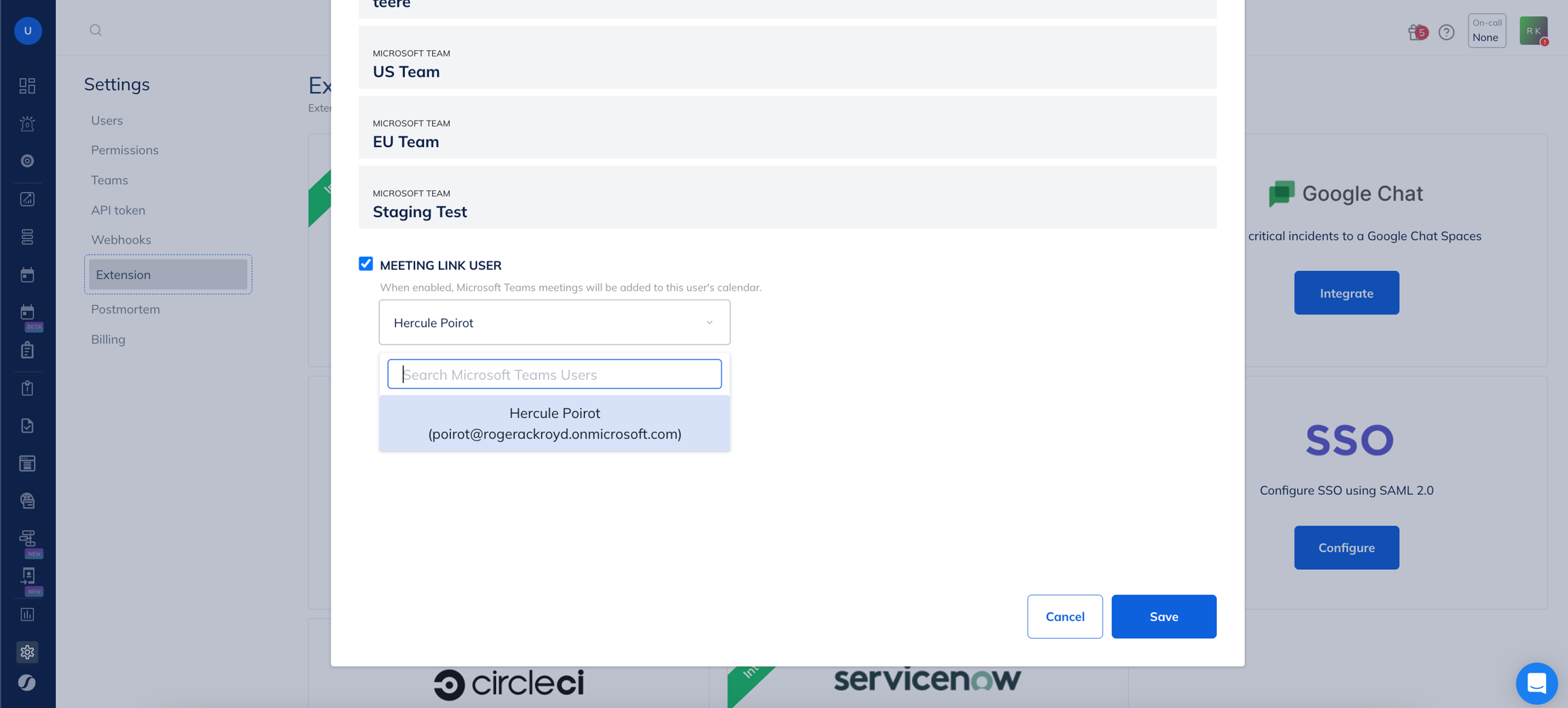
- Then, configure your application to enable the meeting link feature.
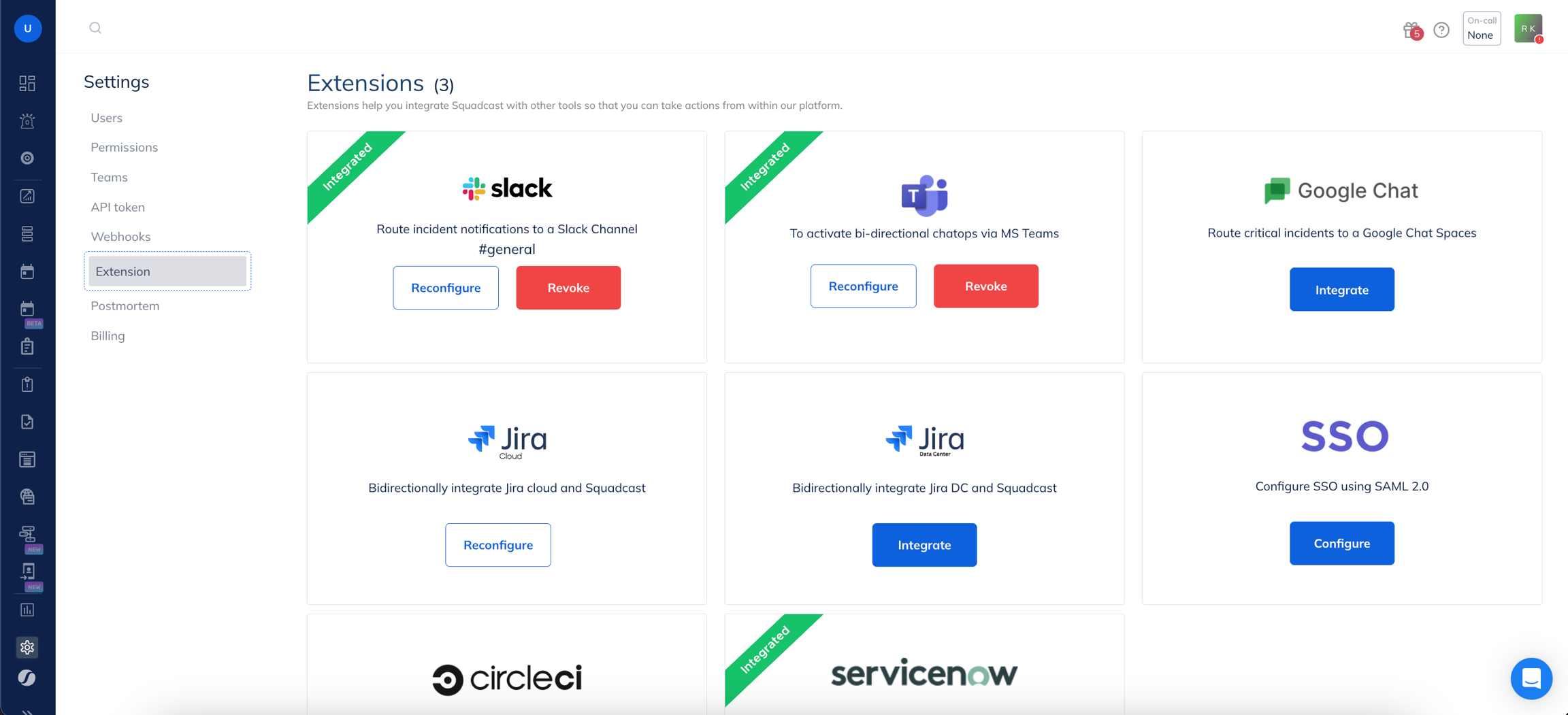
- Navigate to Settings -> Under Extensions, select Microsoft Teams.
Click the checkbox to create a meeting link -> Then, from the available drop-down select a user.

Once you have selected a user, click Save.
Capabilities of Microsoft Teams App
You can
Acknowledge,ResolveandReassignincidents from within Microsoft Teams itself by clicking on the corresponding CTAs. In addition to this, you can also add notes to the incidents which will be directly reflected in the Incident Details page for the incident.
Once the app is added as a bot in a specific Microsoft Teams channel, you can run the bot command
whos-on-callto view the on-call schedules for all the Teams created in your Incident Response organization.
Additional Information on Errors
Errors encountered when taking action on the incident:
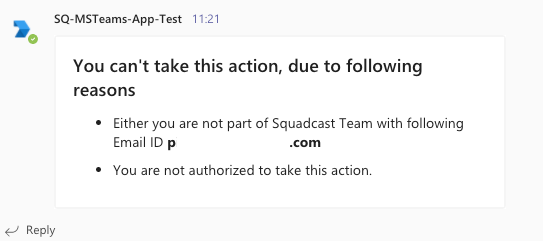
This error is either because you are not part of the organization for which this incident is triggered in Incident Response, or you are not authorised to take this action.
FAQs
What happens when I link multiple organizations with the same tenant?
What does unlinking an account lead to?
If you link multiple organizations with the same tenant, then the previous organization-tenant mapping will get deactivated.
Unlinking an account deactivates all the organizations for a given tenant.